
Browser Workflows
Teach a task once in a live cloud browser, refine it on a canvas, and run it forever.
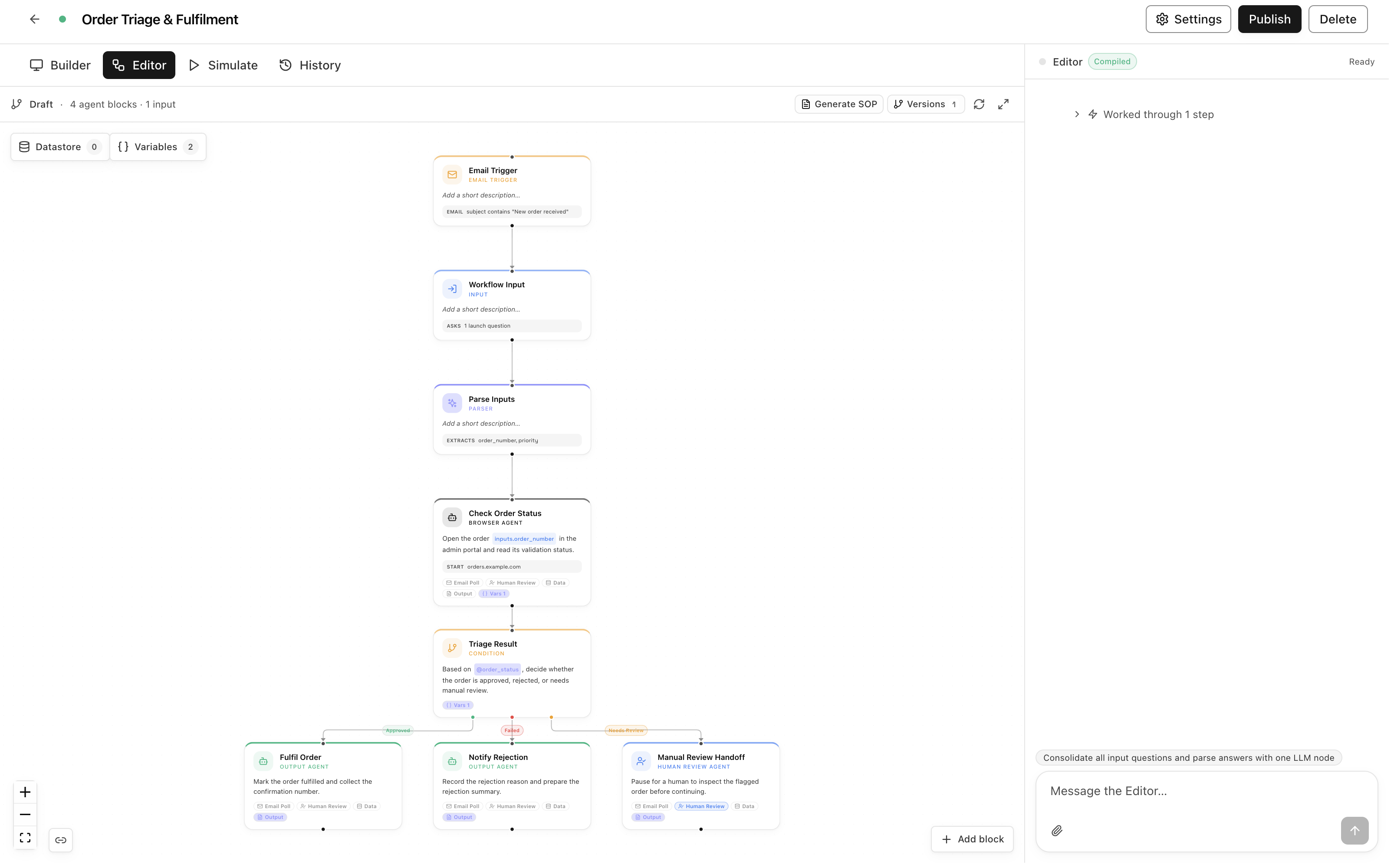
A browser workflow is a task you'd normally do by hand, captured once and turned into an automation your whole team can launch. You don't write scripts and you don't record brittle click-paths. You show the agent the task in a real browser, and RamAIn compiles what it saw into a graph of readable blocks: inputs, agent steps, parsers, and conditions that you can inspect and edit in plain English.
What browser workflows are good for
If a task lives in a browser and follows a repeatable shape, it's a candidate. A few patterns come up constantly:
Detail: Portal data entry
Keying orders, invoices, loan applications, or support tickets into a vendor portal that has no API. You demonstrate one entry with real data; the compiler turns the values that change into launch inputs, so every future run is "fill the form, submit, capture the confirmation number."
Detail: Report downloads
Signing in to a dashboard every Monday, setting the date range, exporting the CSV. As a workflow, the login comes from Passwords, the date range is an input, and the downloaded file comes back as a run output. Put it on a schedule in Triggers and stop thinking about it.
Detail: Order processing with decisions
The running example in these docs is Order Triage & Fulfilment: an email arrives, the workflow looks up the order in an admin portal, and a three-way condition routes it to fulfilment, rejection, or a human review handoff. Conditions let one workflow handle every case instead of only the happy path.
Detail: Account and status lookups
"What's the status of policy 88-4417?" A lookup workflow takes the identifier as an input, checks the portal, and returns a structured answer. Wire it to the API and other systems can ask the question too.
The common thread: the browser work is the boring part, and the parts that change (an order number, a date, a file) become inputs. One demonstration serves hundreds of runs.
The three phases
Every workflow moves through the same lifecycle, and you can loop back to any phase at any time.
Step 1
Build. Open the workbench and a dedicated cloud browser spins up in seconds. Chat with the agent in plain English while it does the task in full view. You answer its questions, let logins go through the secure credential prompt, and point out what changes from run to run.
Step 2
Edit. Clicking Save compiles the session into a draft workflow graph. In the editor window you refine it: rename inputs, add branches, wire in Passwords and reference files, add human-review checkpoints. You can do all of it by chatting, or by clicking blocks directly.
Step 3
Test & iterate. Simulate the workflow step by step, launch it for real, review every session in History, and apply one-click fixes when a run fails. Publish makes the workflow launchable, activates its email and schedule triggers, and exposes it as a REST API.
Dive into each phase
Everything you can tell the agent, everything it can do in the browser, and how a session becomes a draft.
The block vocabulary, the node inspector, variables, the datastore, and every tool in the editor window.
Simulate, launch, replay history, apply suggested fixes, and publish changes on your schedule.
How workflows sign in to websites without secrets ever appearing in graphs, chats, or API payloads.
Draft vs. Published
Save always compiles to a draft. Drafts are safe to edit and are never launched by accident. Publish is the deliberate step that makes a workflow launchable, turns on its triggers, and opens its API endpoint. You can keep editing after publishing; changes stay in the draft until you publish again.
New to RamAIn? The Quickstart walks the whole lifecycle in about ten minutes, and Key Concepts covers the vocabulary you'll see on every page.
Was this page helpful?