
Editor, autosave, and versions
Change a saved workflow deliberately, inspect its inputs and evidence, and verify each persisted version.
Choose the right editing surface
Open a saved workflow and choose Editor. Its three canvas views describe different aspects of the same workflow:
Use direct SOP editing for a sentence or instruction-order change. Use Editor chat when a change needs to coordinate several fields or blocks, such as adding an input and updating the task that consumes it. The views share one definition; they do not maintain separate copies that need manual synchronization.
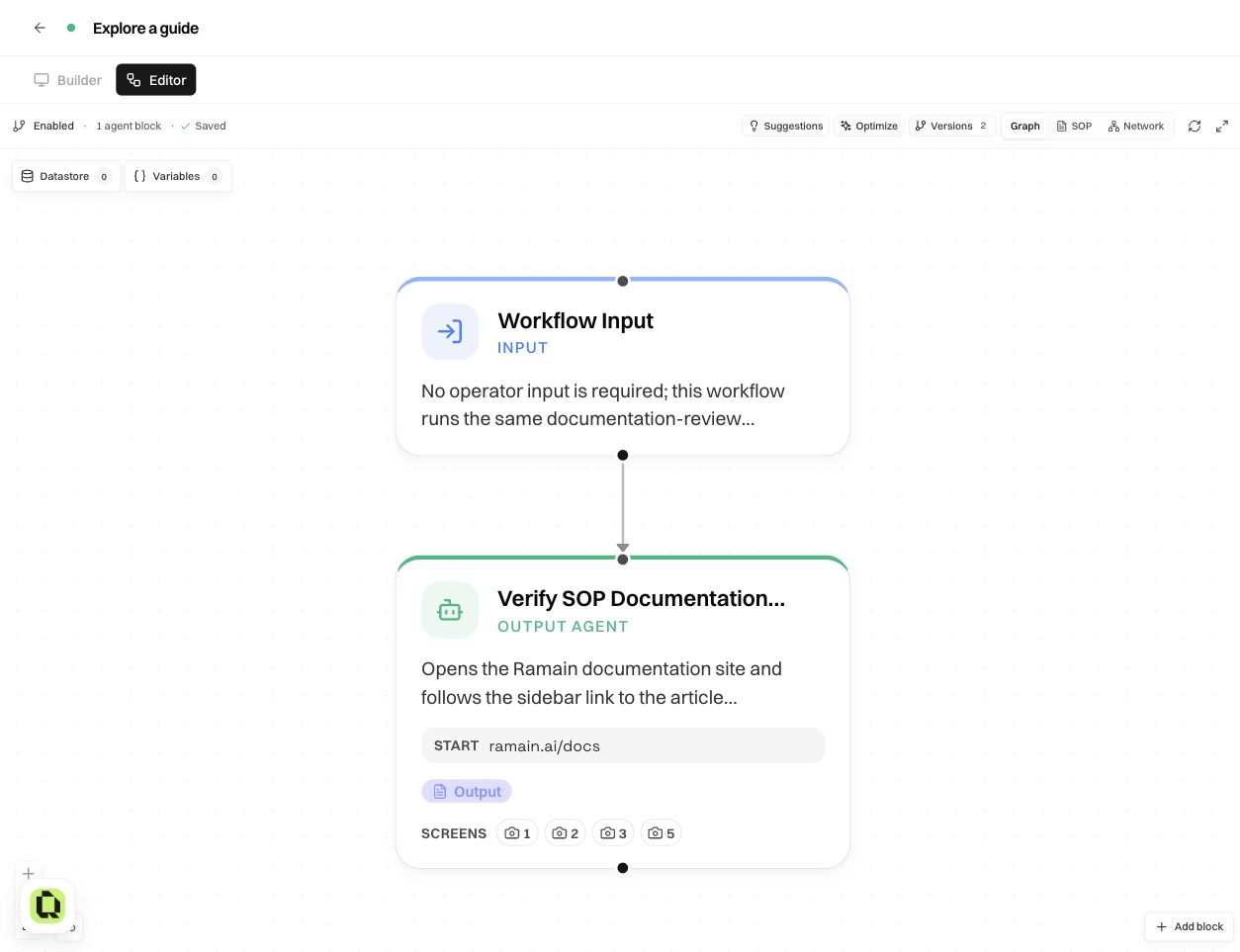
Turn a fixed example into a reusable workflow
Our first version always opened the SOP guide. To make the guide change on each run, we sent Editor a request that specified the new field and how it should affect execution:
Add a required launch input named guide_name, labelled Guide name. Use one input parser to resolve the requested guide. Open the exact matching sidebar guide, verify its title and URL, then return its first three section headings and capture a screenshot. If there is no exact match, ask the operator instead of guessing.
After the editor finishes, read its change summary and wait for the saved-version confirmation. Then verify the actual graph. You should be able to trace the value from Workflow Input, through Resolve Requested Guide Title, to Verify Requested Guide Page.
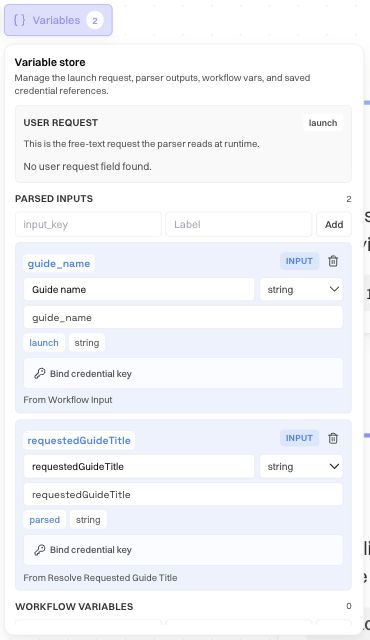
Check the input's label, required behavior, example/default, and type. Check that the parser does not invent a guide when the value is missing, and that the browser task uses the resolved title instead of its old fixed article name. Test with a second valid guide to prove the workflow is reusable.
Edit a block or a written instruction
Select a block to inspect its available fields, or use Edit this block with the editor for a scoped chat edit. State the block and the desired behavior, especially when several tasks have similar names.
For a direct text edit, switch to SOP, click the instruction, change its wording, and leave the field. Use the instruction's arrows to reorder it or its insertion controls to split a long action into clearer steps. See the SOP walkthrough for the full attachment and editing flow.
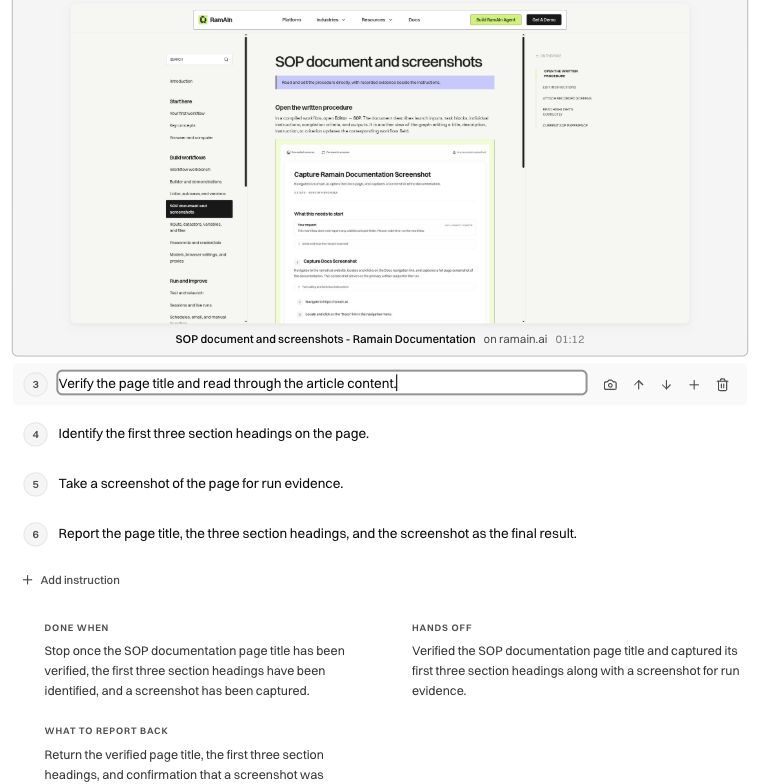
For broader changes, include the expected output in the request. “Check the guide” is ambiguous; “Return the verified title, URL, and three headings in order” tells both the task and the reviewer what completion means.
Add branches and handle exceptions
A branch should describe a real decision and its alternatives. For example, “exact guide found” can continue to extraction, while “no exact match” should request clarification. Explain the condition for each path and what each path produces.
Do not test only the normal arm. Supply an input that takes the exception path, verify the correct human question or fallback, and confirm execution does not silently choose a different record or guide. If the user must approve an external action, place that decision before the action it controls.
Use Add block and connection controls when making structural changes through the graph. Inspect the order and connections afterward; placing a block near another on the canvas is not, by itself, evidence that the execution path connects them.
Understand autosave and availability
Graph edits save automatically shortly after the last change. Watch the toolbar move from Saving… to Saved, and wait for that confirmation before closing the page. Compiler/editor turns also persist their resulting graph before reporting completion.
A saved workflow remains enabled while you edit it, so new launches can use the newly saved definition. If launches should pause while you revise a business process, use Disable first. Re-enable after your tests. Disabling pauses new launches without deleting the definition or rewriting active runs.
A failed or interrupted save is not a successful version. Read the reported error, restore connectivity if needed, and confirm a persisted save before relying on the change. Do not infer persistence solely from seeing the new words on screen.
Inspect version history
Select Versions in the toolbar. Entries identify saved versions, their authors and timestamps, and a summary of the changes. Expand Read changes to inspect what was added or updated.
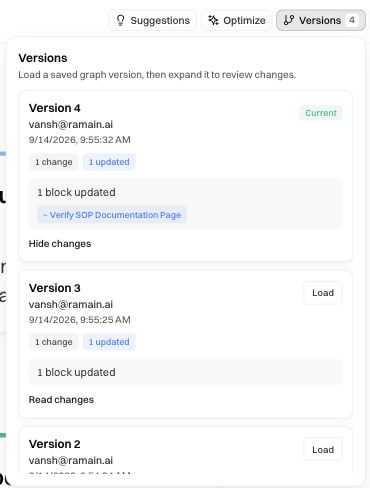
Use Load on an older entry when you intend to load that saved graph for review or recovery. Inspect its contents and the resulting save state before launching. A version number is useful context when comparing behavior, but it is not a substitute for checking the changed instructions and inputs.
Each run belongs to the version it launched. Editing the current workflow does not alter a completed run's historical output. When reporting a regression, keep the run, its version, the supplied inputs, and the expected behavior together.
Review evidence after changing instructions
A screenshot that illustrated “open the SOP article” may become only an example after you change the instruction to “open the requested guide.” Check stale-evidence indicators and the actual image. Use Re-match screens as a starting point, then manually correct placements in SOP.
Suggestions and Optimize offer other kinds of changes. Suggestions concern run findings and repairs; Optimize looks for reusable sequences from recorded runs. Review either proposal before applying it, then run a focused test. Neither replaces checking that the business result is still correct.
Was this page helpful?