
Models, browser settings, and proxies
Choose a model, preserve browser sessions, and configure the network used by your workflow.
Open the workflow settings
Open a workflow and select Settings in its top bar. Wait for the saved values to finish loading before changing anything. This panel combines workflow preferences with a few explicitly labelled account or workspace settings, so read the scope beside each control.
A useful first configuration is RamAIn Pro, the normal network, and a deliberate choice about Cache Persistence. Run the workflow with representative inputs before trying a faster model or changing its network. That gives you a result to compare against.
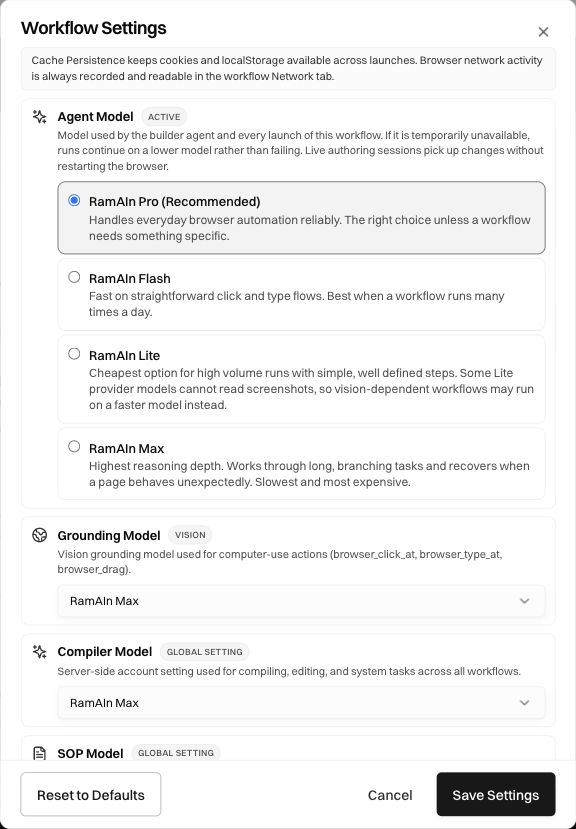
Choose the agent model
The selected model handles the workflow's model-driven work, including input parsing and agent tasks. A model choice is therefore more than a preference for the wording of chat replies: it can affect how the workflow interprets an input and recovers from an unexpected page.
Choose an option, then select Save Settings. Live authoring sessions can pick up agent-model changes without restarting their browser. Provider availability can also cause a run to use a fallback, so inspect the run when comparing performance rather than assuming every run used the same provider.
For example, first run “Open the documentation guide and report its first three headings” with Pro. Repeat with Flash using the same inputs. Compare the extracted headings, any retries, and the run duration. A faster run that returns the wrong section is not a successful optimization.
Understand the other model controls
Grounding Model concerns vision-based interaction: locating a control in a screenshot for an action such as clicking, typing, or dragging. It is distinct from deciding what the workflow should do next. Change it when evaluating visual interaction quality, then test the specific difficult control.
Compiler Model is labelled Global Setting. It is a server-side account setting used for compilation, editing, and system tasks across workflows. Do not treat it as a temporary model override for one launch.
Email Parser Model is a workspace setting for turning incoming email, PDFs, and images into workflow inputs. It applies to future email launches. Test it with the kinds of attachments and email wording your trigger will actually receive.
SOP Model refers to the older generated visual slideshow. The current SOP document is edited directly: changing a sentence in that document does not need a slideshow-generation model call.
Preserve a browser sign-in with Cache Persistence
Scroll down to Cache Persistence. When enabled, the workflow reuses its browser profile so cookies and local storage can carry across launches. This is useful when the first run signs in and subsequent runs should start with the same browser state.
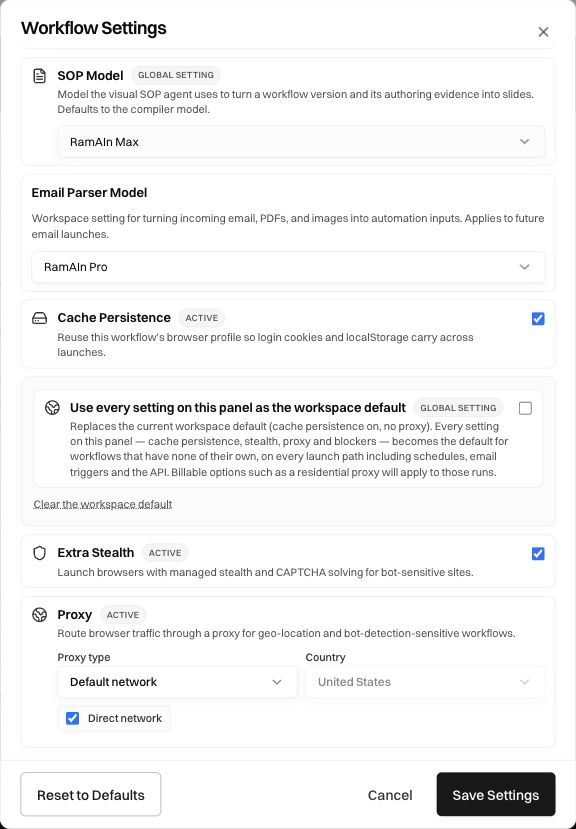
To test persistence:
- Enable Cache Persistence and save the settings.
- Run the workflow through its sign-in step using a saved Password reference.
- Launch another run and observe whether the target site still recognizes the session.
- Make sure the procedure also handles an expired session. A site's logout, session timeout, or challenge can still require a fresh sign-in.
Persistence preserves browser state; it does not store a replacement for your credential references or override the target site's session rules. If a workflow unexpectedly starts from a different account or page state, inspect its saved profile and sign-in procedure before changing the task instructions.
Decide whether a setting should become a workspace default
Use every setting on this panel as the workspace default has a wider effect than saving this workflow. Its description lists the browser settings it applies: cache persistence, stealth, proxy, and blockers. They become defaults for workflows that have no configuration of their own, including launches from schedules, email, and the API.
Leave this unchecked when experimenting on a single workflow. Select it only when you intend the displayed browser configuration to become the workspace's fallback. Options such as residential proxies can then apply to those other launches too. Clear the workspace default removes that shared default; it is not the control for reverting one unsaved field.
Configure stealth and network routing
Extra Stealth enables the managed browser's stealth and CAPTCHA-solving features for sites that are sensitive to automation. It does not guarantee that a site will accept a run or eliminate every human challenge. Keep an explicit recovery step for a site that needs an operator.
Under Proxy, choose a network route suitable for the destination:
The dialog changes as you choose a type. A disabled Country control is not a failed save: that route may not offer a country choice. Do not assume an option is configured merely because it appears in the picker.
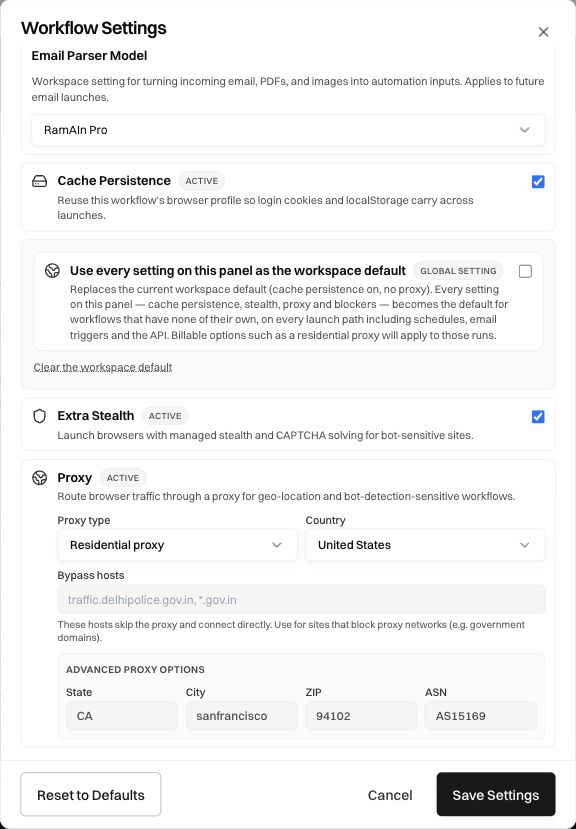
For a residential route, select the supported Country first. Use State, City, ZIP, or ASN only when you need the narrower routing and the provider supports it. Bypass hosts identifies destinations that should connect directly instead of using the proxy; the field accepts the host patterns described by the interface. A bypass is not a second proxy route.
Keep proxy credentials in the protected configuration fields. Do not copy them into task instructions or support screenshots. After saving a network change, start a new run and check the destination, sign-in state, and any location-dependent content. The workflow's Network view helps inspect recorded browser network activity.
Save, cancel, and verify
Save Settings applies the dialog's configuration. Cancel closes without applying an unsaved experiment; if prompted, choose Discard changes to abandon those edits or Keep editing to return to them. Reset to Defaults is a configuration action, not a synonym for Cancel.
After saving, reopen Settings and confirm the values, then launch a representative test. If the task now fails, compare the changed model, browser profile, and route one at a time. Use the same inputs so you can distinguish a configuration problem from a different task or page.
Was this page helpful?