
Builder and demonstrations
Teach a complete task through chat and browser actions, then turn the recorded procedure into a reusable workflow.
Start with a task you can verify
Open Workflows in the intended workspace and select New Workflow. The workbench creates a draft and starts or offers to start its browser session. Wait until the browser is ready before giving the first action. Use the title field in the top bar to give the draft a recognizable name, such as Explore a guide.
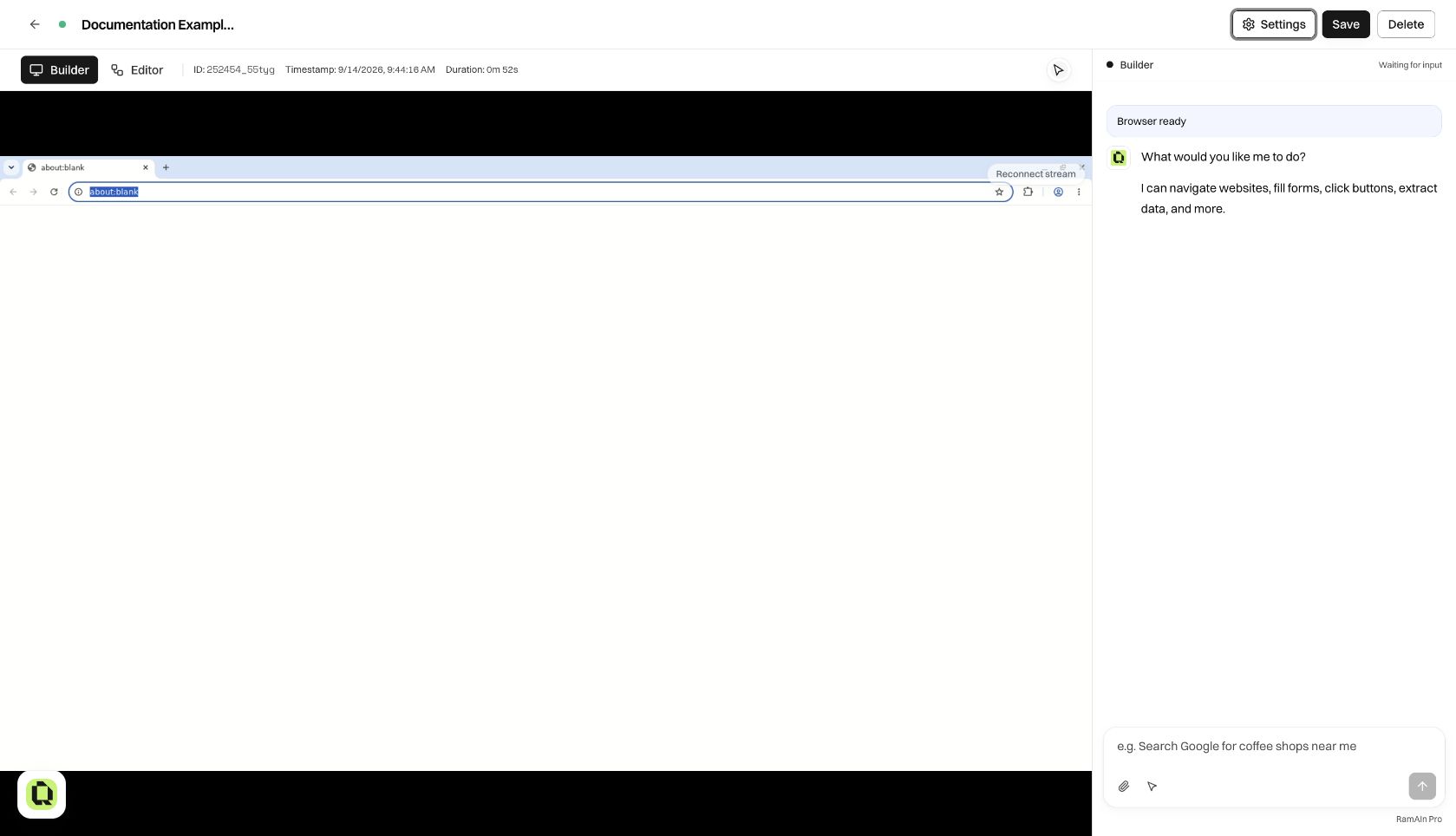
A good first task has a clear starting point and a visible result. For our example, the agent will open the public documentation, choose a guide, verify its title and URL, and report three section headings. This lets us check the result directly against the page without needing access to a private business system.
Write the task brief
Tell the agent five things: where to start, what to accomplish, which values change, how to recognize completion, and what to do when the normal path is unavailable.
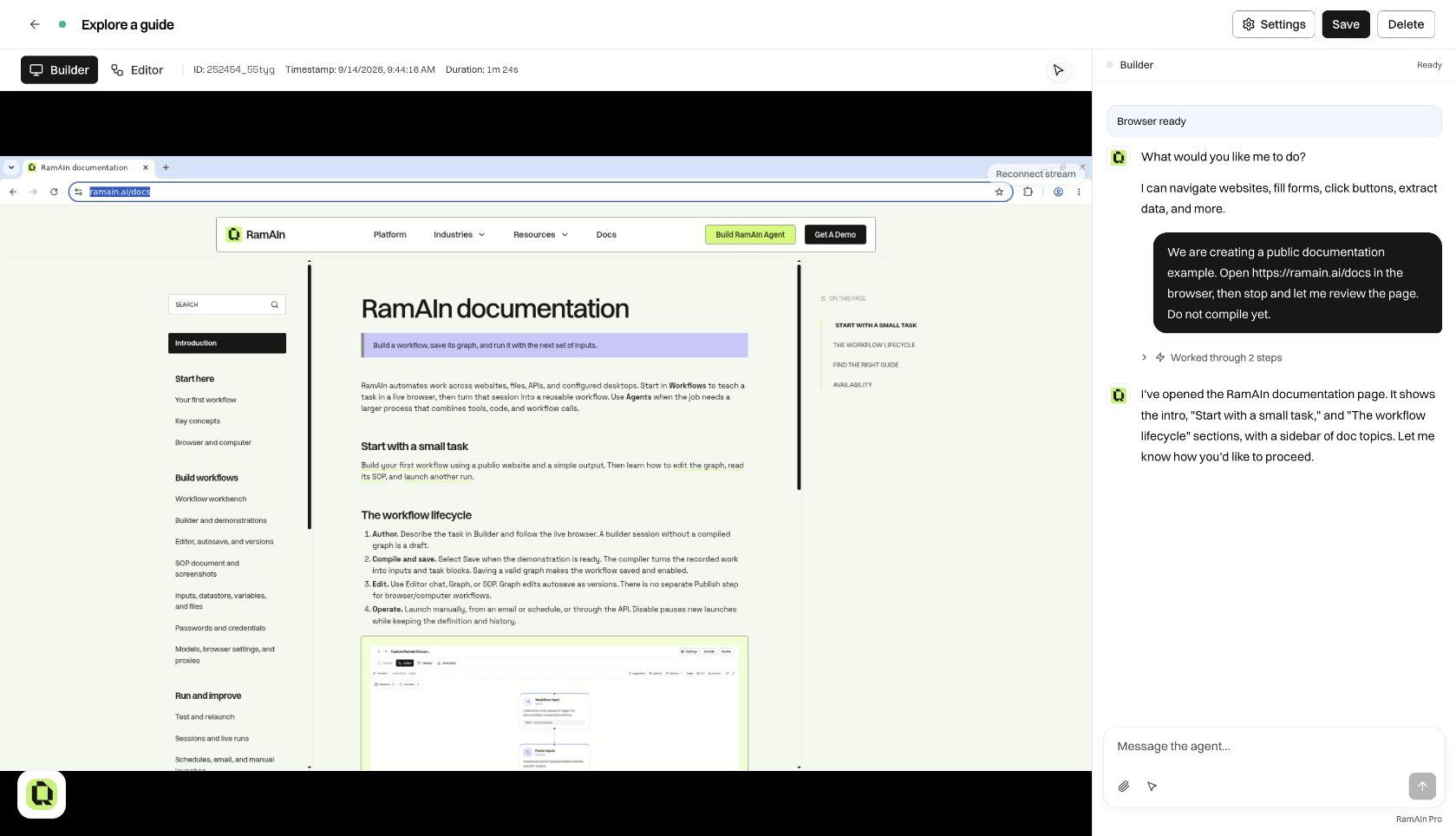
You can give the complete task at once or teach it in short, coherent stages. For the first stage of this walkthrough, we used:
Open https://ramain.ai/docs in the browser, then stop and let me review the page. Do not compile yet.
“Do the usual process” omits the information a reusable workflow needs. Include exact field meanings, selection rules, and success checks. When a value is only an example, say so: “Use this date for the demonstration, but ask for the date at launch.”
Watch progress and correct the procedure
Read the latest chat response alongside the live browser. Expand a Worked through … steps row when you need to inspect the actions behind a summary. A tool call that completed is evidence of an action; the resulting page tells you whether that action achieved the intended result.
Give corrections in chat as soon as you see a wrong assumption. For example:
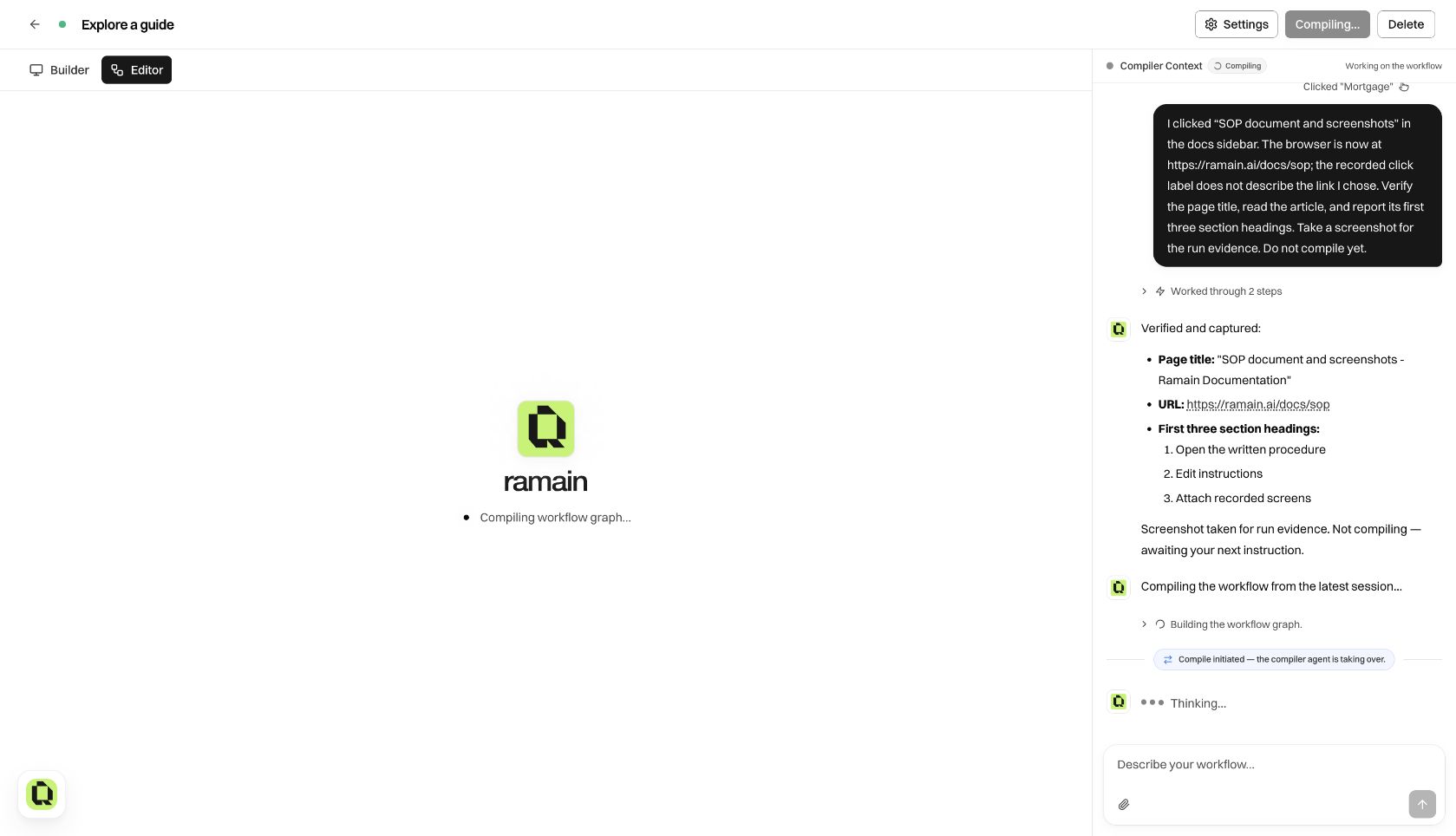
The article I want is “SOP document and screenshots,” not the general introduction. Open that exact sidebar link, verify that the URL ends in /docs/sop, then read its first three section headings.
This records the intended procedure and its correction in the authoring context. Do not just steer the browser silently and expect the compiler to infer why the page changed.
Use the turn's stop control when the agent is still working and needs redirection. Ending the browser session is a separate action. A browser that has stopped receiving instructions is not necessarily a terminated session.
Demonstrate an action yourself
In an idle cloud browser authoring session, the cursor control beside chat attachments starts human interaction capture. Use this when showing the agent which menu, record, or control you mean is easier than describing it.
- Wait for the agent's current turn to finish.
- Select the cursor control and wait until capture is active.
- Perform the intended action inside the live browser.
- Check that the action appears in the recorded chat/trace and that the browser reached the expected state.
- Turn capture off before asking the agent to continue.
The live authoring browser is read-only outside active capture so an unrecorded click cannot silently change the demonstrated procedure. Starting capture and seeing it become active are separate steps; wait for the active state before interacting.
After your demonstration, describe its meaning: “I selected the guide named by the operator; this should be variable on future runs.” If a recorded action label disagrees with the actual page, verify the destination and explain the correction in chat. Later, review the compiled instruction and its screenshot attachment instead of trusting the label alone.
Supply credentials and files in context
For sign-in, create a saved Password and reference it as #key. Explain which site and account that reference is for. Keep the secret itself out of ordinary task text and launch-input examples.
For document-driven work, attach a representative file and explain the fields to extract. Distinguish a sample file used to teach the workflow from a new file that should be supplied at each launch. A reusable policy document belongs in the Datastore. An email-driven task can use an appropriate incoming-message example from the Inbox.
Compile the demonstrated task
Once the normal path and its success check are demonstrated, select Save, or explicitly ask Builder to compile/save the automation. The compiler reads the recorded procedure and produces semantic task blocks, declared inputs, parsers, and branches where needed.
The first valid save carrying a graph makes the workflow saved and enabled. There is no separate workflow Publish step. Incomplete in-graph trigger configuration can prevent that promotion; resolve the reported trigger issue and save again.
Review what the compiler produced
After compilation, check the input block, the task order, the completion criteria, and the final output. Open SOP to read the procedure in ordinary language and review the attached screens. A short demonstration can produce a small graph: the graph represents coherent tasks rather than one block for every recorded click.
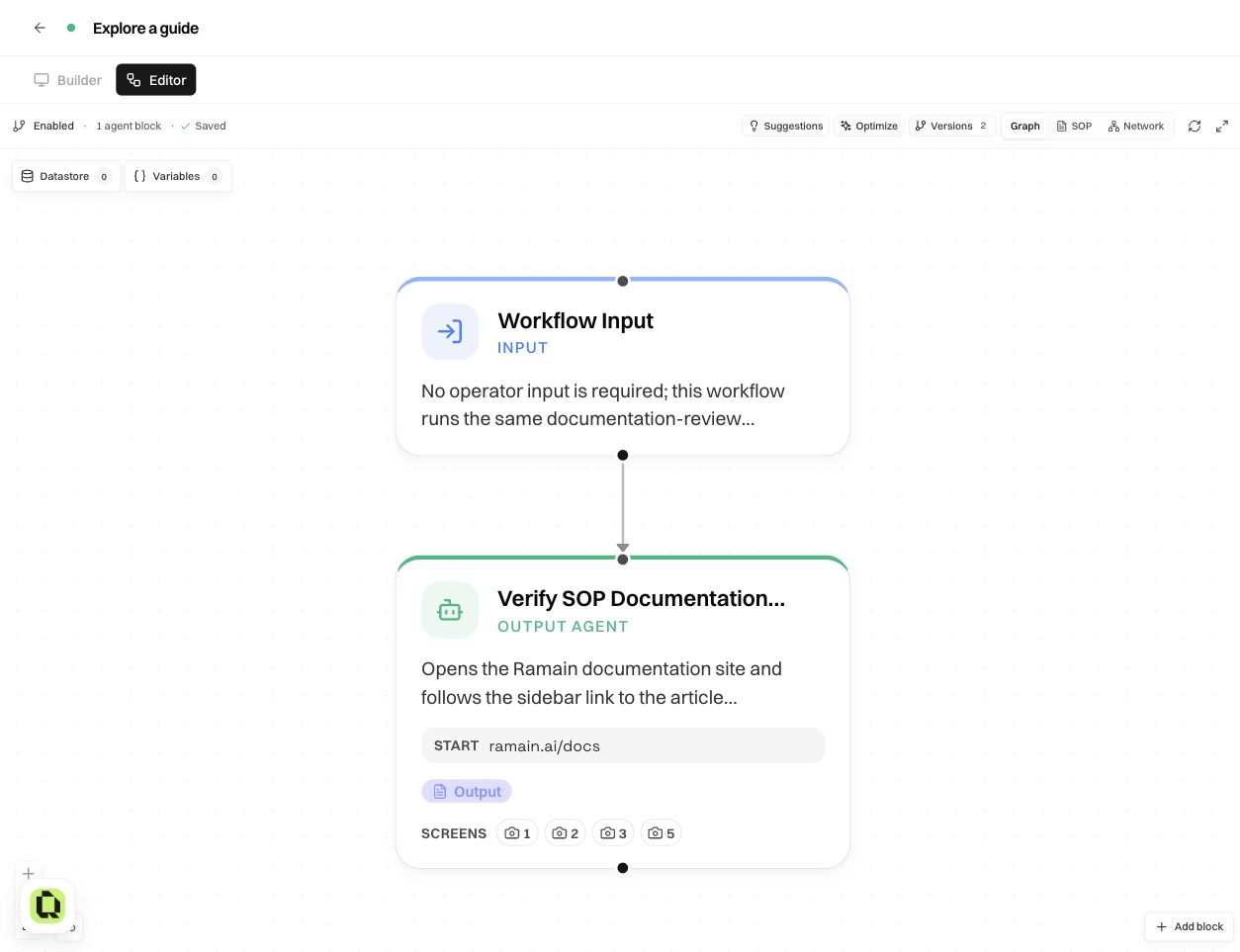
Builder becomes unavailable after the first compile. Continue definition changes in Editor, then launch a test. If you need to teach an entirely new demonstration, start a new workflow instead of expecting the original Builder tab to remain an unrestricted recording surface.
Was this page helpful?