
Drift, suggestions, and repair
Read what changed during a run, inspect the evidence, and verify a targeted correction.
Drift compares what an execution actually did with the workflow version it was supposed to follow. It helps answer a question that success/failure alone cannot: did the task finish as designed, or did the agent have to improvise?
A run can complete after recovering from a renamed button, an unexpected dialog, or missing information. That may be useful adaptation, but repeated adaptation is a reason to review the procedure. Conversely, a failed run is not automatically evidence of website drift; it may have been blocked by inputs, credentials, or billing.
Open the analysis for one workflow
Open the workflow's Analytics tab and select Drift. The workspace Analytics → Drift view can also lead to workflow analysis where available. Choose the workflow and time range before comparing numbers.
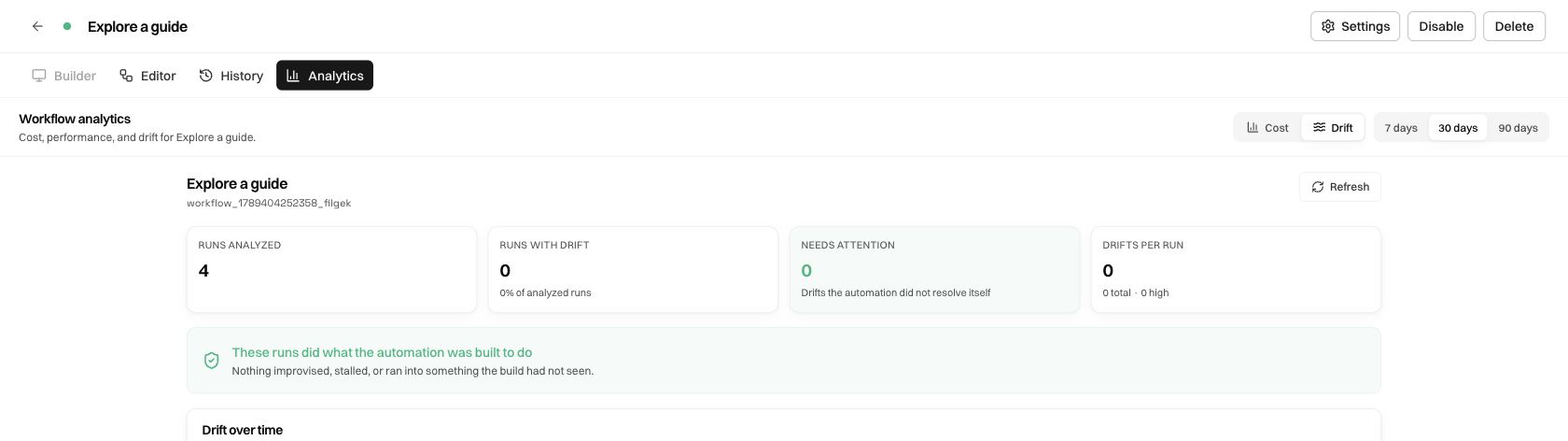
Read the summary correctly
The drift-rate denominator is analyzed runs. Pending, failed, skipped, or unavailable analyses are not clean results. If the view has no analysis yet, check the selected date range and whether the deployment enables drift analysis. A recently completed run may still be processing in the background.
Older eligible runs can show Analyze, failed analyses can show Retry, and a detail view can offer Re-analyze. Use the action appropriate to the row's state. Refresh reloads the view; it is different from requesting an analysis that does not yet exist.
Open the run behind a number
Scroll to Runs and select a row. Compare the execution outcome with the drift label and analysis timestamp. The detail view relates the execution to its version baseline, so you can reason about what the run was actually expected to do at that time.
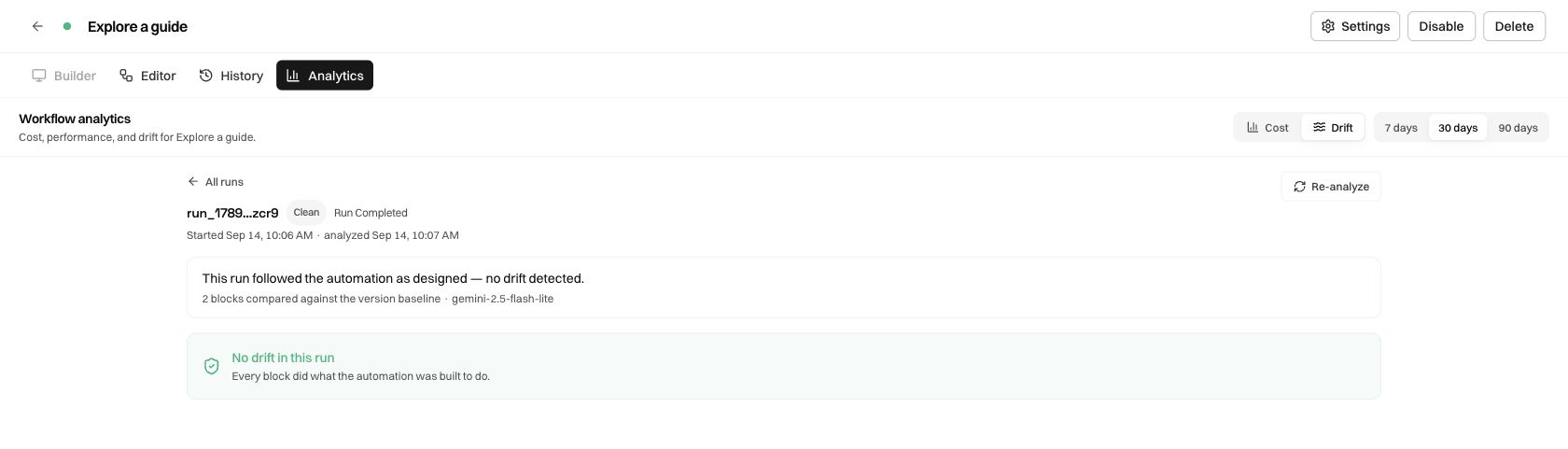
When findings exist, inspect the affected block, the observed behavior, the expected behavior, and whether the agent resolved the issue. Then open History for the actual input, action sequence, output, and available replay.
For example, a guide named SOP document and screenshots might no longer exist under that exact title. The intended behavior in our example is to ask the operator. A run choosing another guide without asking would be a procedure problem even if it returned a plausible title and headings.
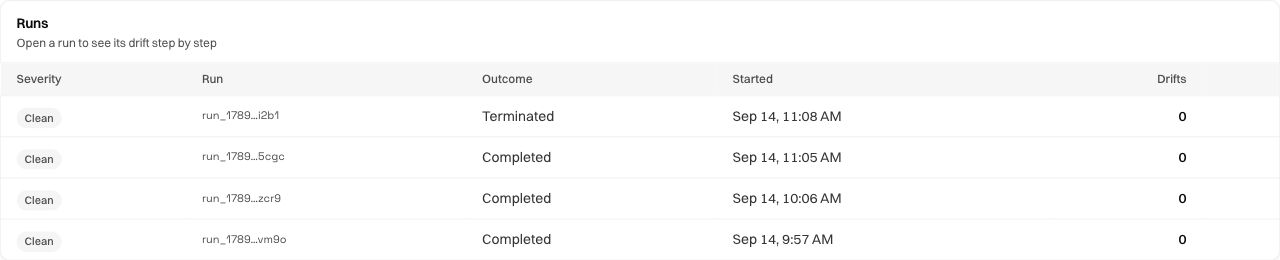
Look for a repeated cause
The overview can group findings by kind and show which nodes account for recurring issues. Use the timeline, affected-run counts, and node breakdown to determine whether the problem is isolated or repeated.
Compare like inputs before changing the workflow. A request that legitimately chooses another branch should not be “fixed” to imitate the demonstration's path. Distinguish a new valid case from behavior that violates the task's rule.
Record a compact explanation before editing: which input, which node, what happened, what should happen instead. That gives Editor a specific correction and gives the next test a clear acceptance criterion.
Review Suggestions in Editor
Open Editor → Suggestions. The panel groups proposed handling by the workflow node it would improve, based on recent analyzed runs. Read the evidence and proposed change together.
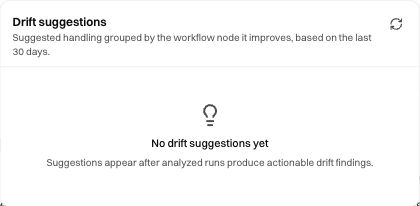
When a proposal is present, compare it with the workflow's original goal and other cases. Apply the change only when it expresses the intended behavior. Then inspect the resulting node instructions, graph connections, and saved/version state. A suggestion is a proposed correction, not proof that the revised workflow has passed a run.
Direct changes in Editor autosave. Disable the workflow before a substantial revision if automatic triggers must not launch during the edit. Review Editor and versions for restoring or inspecting a definition.
Repair and retest
For a failed run, inspect the last useful state and the failure explanation. Describe a narrow correction in Editor or use Implement fix when a repair proposal is offered. Check that the change repairs the cause rather than hiding a failure signal.
A useful test sequence is:
- Reproduce the affected case with safe data.
- Verify the formerly failing step and the final output.
- Test a previously working case to check for a regression.
- Review the new run and its analysis after it finishes.
Run with the same data can help reproduce the input. It starts a fresh execution and runs the input parser again; it does not roll back the first run. If the task sends messages or changes external records, account for what the first run already did before repeating it.
For repetitive navigation that works correctly but takes many actions, use Optimize. Drift repair addresses unexpected behavior; shortcuts address repeatable action sequences. Detailed monetary/model analytics have separate access rules.
Was this page helpful?