
Sessions and live runs
Find the right execution, understand its current step, answer a human prompt, and inspect its recorded result.
Find the execution you need
Open Sessions for execution history across the selected workspace, or open a workflow's History tab for its own launch sessions. Choose the relevant record using its name, time, status, and identifier. Opening history does not start another run.
A workflow is the saved definition. A run is one execution of that definition with particular inputs. Its browser or desktop session provides the live runtime and recorded evidence. Keeping these separate helps when a workflow has several runs with different outcomes.
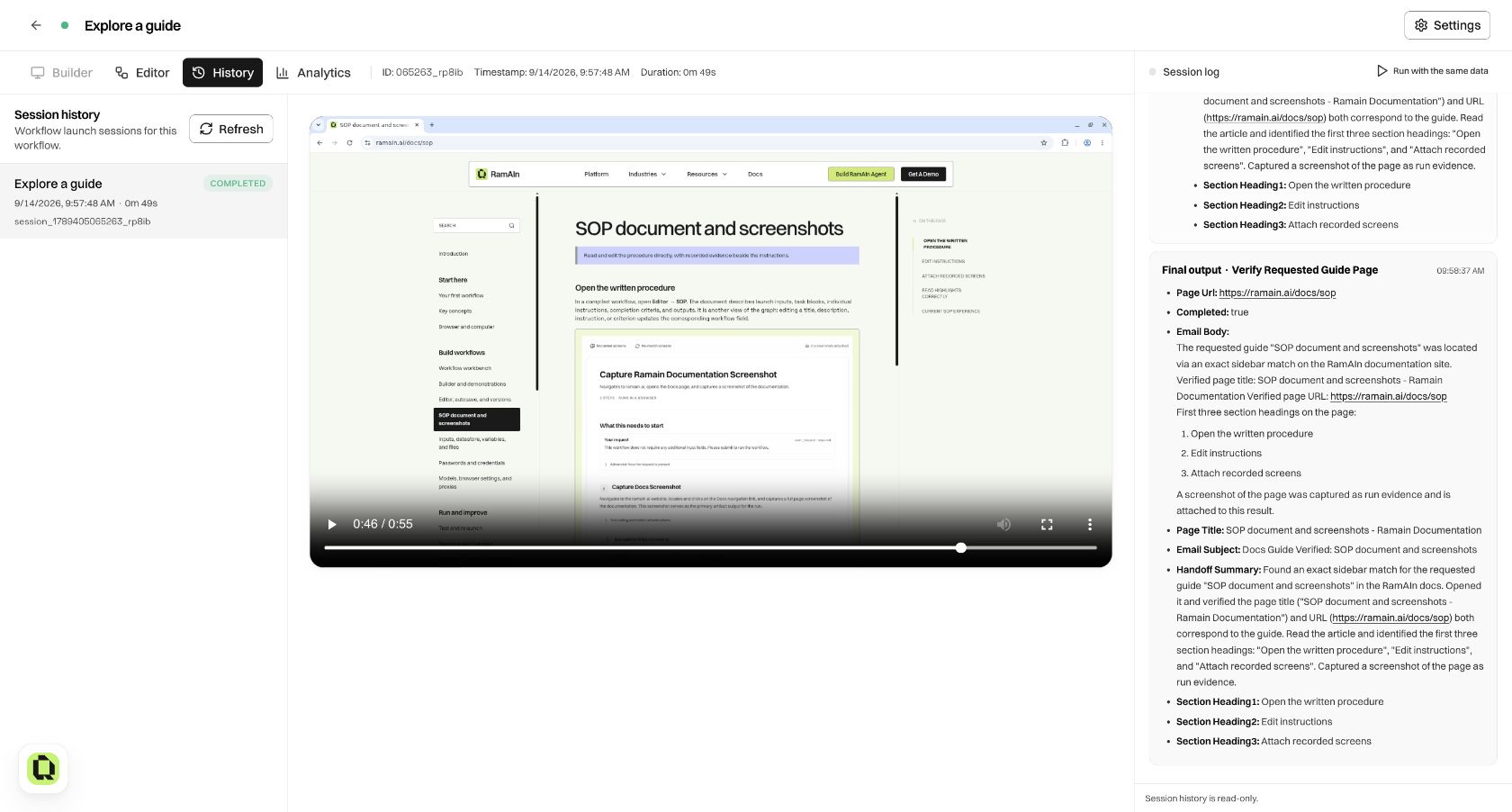
The run belongs to the version it launched. A later Editor change does not rewrite that historical result. When comparing runs, keep the inputs and version context alongside the timestamps.
Read a live run
Open the available Watch live control for an active session. The main panel shows the browser or computer, while the rail shows launch questions, collected inputs, current steps, and agent progress.
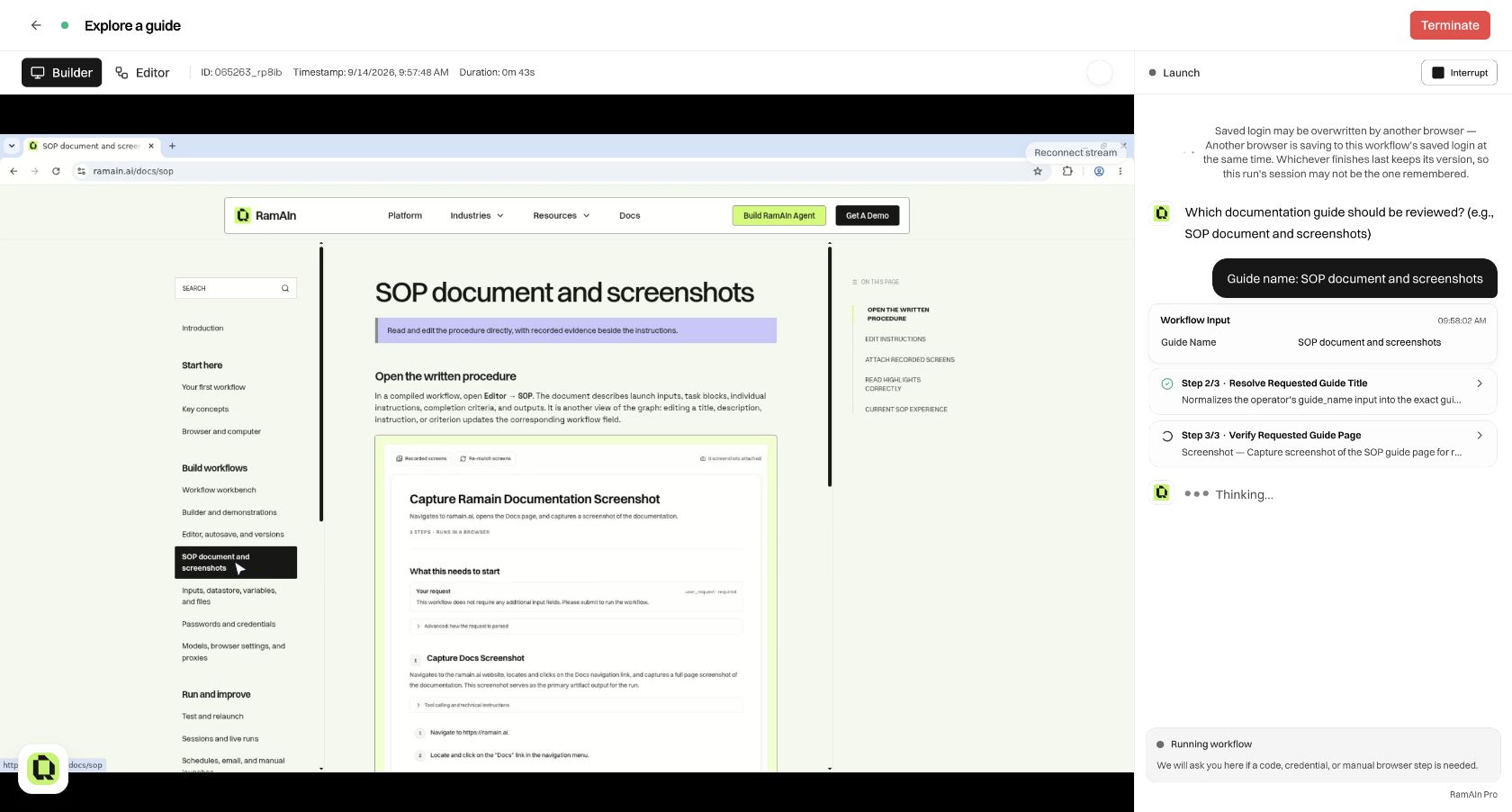
A run can be allocating a browser, processing an input, acting on a page, or waiting for a person. A still image alone does not tell you which state applies. Read the latest status and event before deciding that execution is stuck. Reconnect stream, where offered, concerns the displayed browser stream; it is not the same as restarting the workflow.
Answer a launch question or human prompt
A launch question asks for a declared input before the task can proceed. In our example it asks Guide name. Enter the value and select Continue.
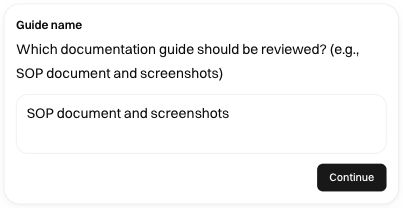
For a later human prompt, read the question and the current page together. Supply the requested decision or information, then watch for execution to resume. If a wait expires, inspect the final status before retrying: an expired question should not be treated as still waiting for the same answer.
Where runtime intervention is offered, follow the displayed controls and ownership state. An authoring demonstration captured in Builder and a paused runtime handoff are different contexts. Do not assume a browser accepts direct interaction merely because its image is visible.
Distinguish progress, notices, and output
The log can contain several kinds of information:
For example, a saved-login concurrency notice means another browser may be saving the same workflow profile. It does not mean the guide title itself is incorrect. Keep the notice as context when diagnosing login persistence and compare the actual task result separately.
Inspect a completed result
Read Final output and expand the relevant step if you need the actions behind it. For Explore a guide, check that the URL points to the requested article and that the title and three headings match the page. Output fields called “Email Subject” or “Email Body” can be formatted result fields; their presence alone does not prove an email was sent.
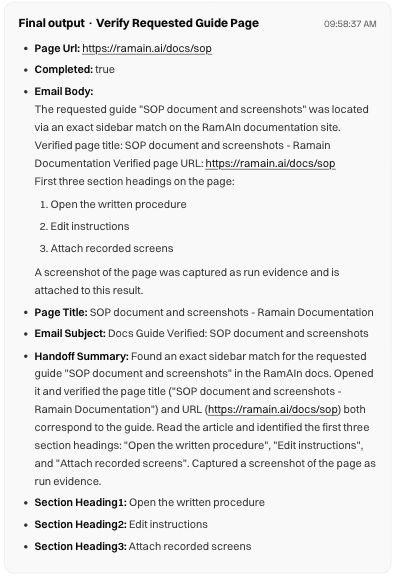
Use the replay controls to move through the recorded browser session. The video may initially show about:blank; seek to the relevant action or later state. A recording shows what happened in that session, while the SOP's screenshots illustrate the authoring procedure.
Download files through the available output controls. A statement that a screenshot or file was captured is not, by itself, a downloadable artifact; check the actual attachment or file control when you need the bytes. Likewise, verify a target application's saved record or confirmation when the workflow performs a write.
Investigate a run that appears stuck
- Check whether the latest state is waiting for a person, still running, or already terminal.
- Read the current question or last task event.
- Compare it with the browser state; reconnect the stream if the display is stale.
- Answer the active prompt or give a precise intervention through the offered control.
- If necessary, interrupt or terminate using the run controls, then confirm the resulting status before launching another execution.
Closing a tab is not a reliable way to stop a server-owned run. Disabling the workflow prevents new launches; it does not cancel an active run. A repeated launch can duplicate external actions, so inspect the original execution before deciding to try again.
Start a new run from this record
Run with the same data creates a new execution using compatible inputs recorded by the selected source run. The parser runs again, and current schema changes still matter. The control changes to Watch live for the new run while it is active. See Test and relaunch for the complete comparison flow.
When reporting a problem, include the workflow name, run or session identifier, approximate time, supplied input, expected result, and first observed divergence. Those details make a useful repair request; “it failed” does not identify the step that needs to change.
Was this page helpful?