
Agent building blocks
Read each node as a contract: the value it receives, the operation it performs, and the result it passes onward.
Inspect the three parts of every node
Select a node in Agents and review its details. First identify its incoming data. Then inspect the operation or instructions. Finally, identify the output field the next node consumes. Node titles help humans navigate, but the actual references and data types connect the process.
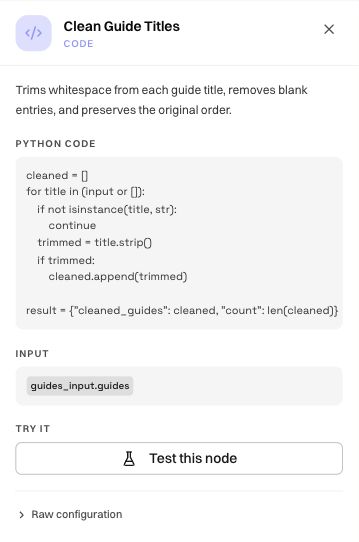
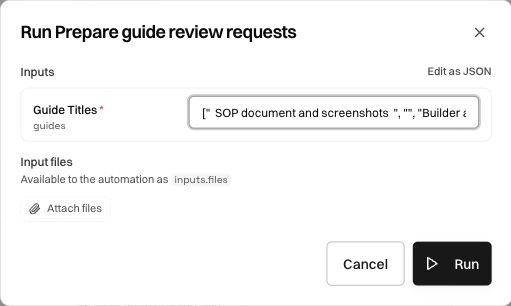
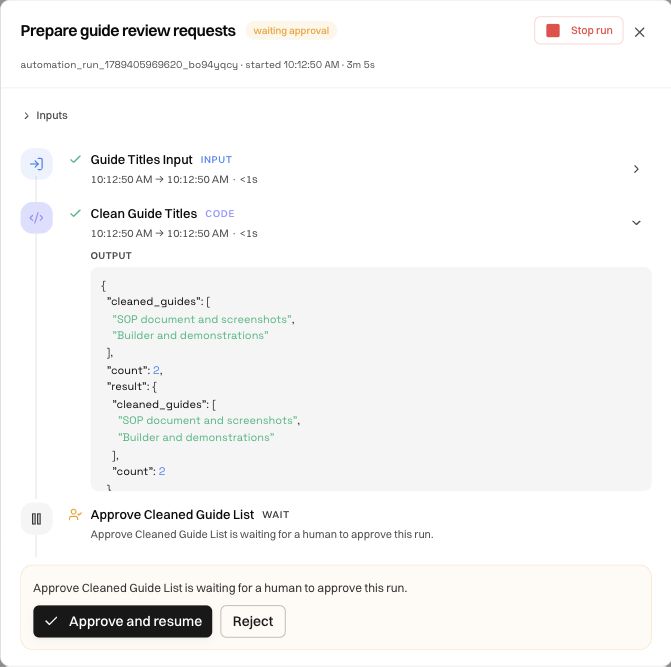
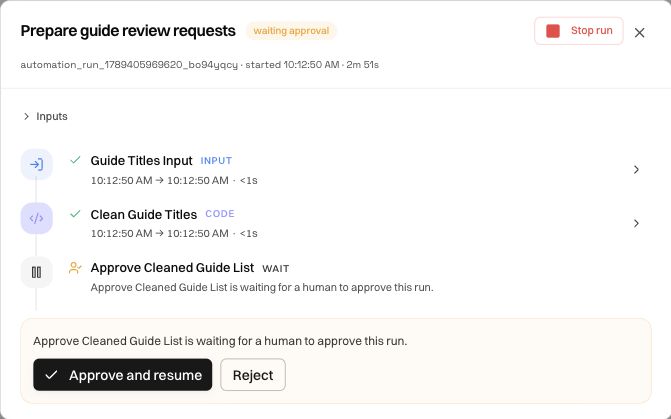
In Prepare guide review requests, the input node receives a JSON array under guides. The Python node receives that list, removes blank titles, and returns cleaned_guides and count. The approval occurs before the output node returns those values.
Inputs and triggers
An Input node defines the data the automation expects: names, types, required fields, and any defaults. Give fields descriptions that explain their meaning. For a JSON list, specify whether it contains strings, objects, or file references.
A Trigger describes how execution begins. A manual trigger, schedule, email event, and API request have different sources of input. Check that every launch path can supply the required fields; a schedule cannot depend on an operator spontaneously entering a value unless the process explicitly pauses to ask.
Code and transformation nodes
Use deterministic code for clear data operations such as trimming strings, validating formats, calculating totals, or reshaping a response. Inspect runtime assumptions and how results are returned, not just whether the code looks plausible.
Our Python example accepts strings, trims whitespace, drops empty results, and preserves order. Its expected output is easy to verify: three supplied entries with one blank become two cleaned entries. The run details show both the resulting fields and execution context.
Test this node helps isolate a node with a sample input. Raw configuration exposes the underlying configuration when you need to inspect references or fields beyond the summarized panel. A successful isolated test does not replace a full run through the upstream and downstream mappings.
API calls and connected tools
For an HTTP/API block, review the request method, URL, authorization, query parameters, headers, and body. Determine whether the call reads data or changes the external system. Then inspect the response fields used later.
For a connected tool, confirm the workspace connection and the tool's intended capability. A provider card being active does not mean every resource is accessible. Handle an empty response, authorization failure, and unexpected shape explicitly rather than letting later blocks operate on a missing value.
Model and agent nodes
Use a model step to interpret content or make a described decision, and a tool-using agent when the job requires acting with available tools. Specify the goal, allowed tools, data sources, completion condition, and output structure.
For example, “classify each guide request as valid or ambiguous and explain the reason” gives a reviewable result. “Process requests” does not explain what the next node should receive. Inspect the selected model and test ambiguous inputs, not only the clearest example.
Browser workflow calls
A browser-workflow node invokes an existing saved task. Select the intended definition and version where offered, map its actual declared inputs, and inspect its output contract. The caller and the browser workflow are different layers: the outer Agent can be configured correctly while the inner browser task fails on a page.
Start by testing the browser workflow alone. Then test the Agent's mapping into it and collection of its result. Keep its enabled state, required credentials, browser configuration, and credits in mind when diagnosing a rejected or failed call.
Loops and branches
A loop needs a defined collection, a per-item value, and a rule for combining results. Inspect one item's mapping before increasing concurrency. Decide whether one failed item stops the process, is collected as an error, or goes to a separate recovery path.
A branch needs explicit conditions and alternatives. Check the output contract on every arm, including empty results and rejected approvals. Drawing two paths is not enough if both accidentally depend on a field produced by only one of them.
Wait and approval nodes
Place the decision before the action it controls. Explain what the operator should review, what approval allows, what rejection does, and any timeout behavior. A wait can be an expected state rather than a failure.
Output and delivery nodes
An output node should return a deliberate shape that a person or caller can use. Specify names, types, and attachment references. Returning JSON, generating a file, and sending that file to another system are different operations; inspect the destination when delivery is part of the graph.
For the example, the final object contains only cleaned_guides and count. Intermediate runtime metadata does not need to become part of the public result. Verify that the final output matches the intended contract in the run record.
Was this page helpful?