
Inputs, datastore, variables, and files
Follow a value from the launch form through its parser, and give the workflow reusable reference documents.
Decide what kind of data you have
A workflow can use several kinds of data, but they serve different purposes. Start by deciding whether a value changes for each run, is produced during execution, or is reference material that many runs should consult.
Putting a file in the datastore does not automatically make it an input question, and adding a variable does not automatically tell a task how to use it. Describe the relationship in the workflow instructions and test it.
Follow an input through the example workflow
In Explore a guide, the operator supplies guide_name. The parser resolves that into requestedGuideTitle, and the browser task uses the resolved title to choose the exact sidebar link. The user-facing label can be “Guide name” while the stable key remains guide_name.
Open Editor → Graph → Variables to inspect these definitions.
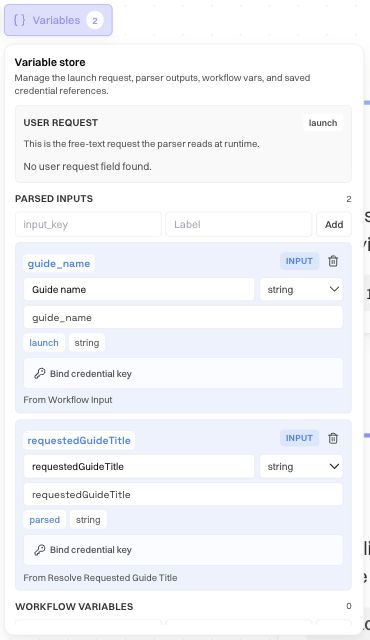
Read each entry's key, display label, type, and source. A launch value comes from the launch path; a parsed value is produced by the parser. The panel also groups workflow variables and credential references. An empty User request section can simply mean this workflow uses a named input instead of a general free-text request field.
To introduce a new required input, give Editor chat a complete instruction:
Add a required string input named guide_name, labelled Guide name. Ask which documentation guide to review. Use one parser to resolve its exact title. If the name is missing or no guide matches, ask the operator instead of guessing.
Then inspect both the input block and the task that consumes it. A field that exists but is never used will not make the automation reusable.
Edit keys and types carefully
Use the input or variable controls to add a key and label, adjust a supported type, or rename a key. The rename control identifies that it updates {{inputs.key}} references. Prefer that supported operation to changing one occurrence in prose and leaving the rest of the workflow pointing to the old name.
Choose types that match the data: a number for a quantity that needs numeric treatment, a boolean for a true/false choice, and text for longer unstructured content. A display label should tell the operator what to enter; a key should stay stable for API clients and later blocks.
Remove input and clear references affects more than the launch form. Review the consuming blocks after removal. Bind credential key is for connecting a protected credential reference; ordinary launch text is not the place to store a secret.
To inspect actual values from a run, open its History session log. The input table and parser step let you compare what was supplied with what the workflow resolved.
Create a reusable datastore note
Open Datastore in Graph view. The panel offers New, Upload, and Import. The displayed supported formats include PDF, text, Markdown, CSV, JSON, HTML, XLS, and XLSX; the way a file is read depends on its format and the tools used.
For a small checklist:
- Select New.
- Enter a descriptive filename, such as
guide-review-checklist.md. - Choose the appropriate format, such as Markdown.
- Write the reference content.
- Select Create and confirm that the document appears in the list.
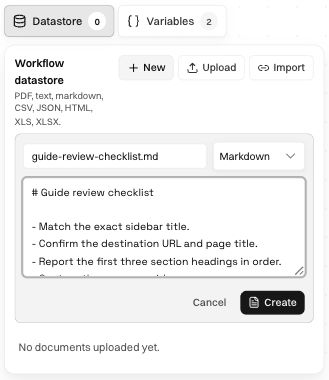
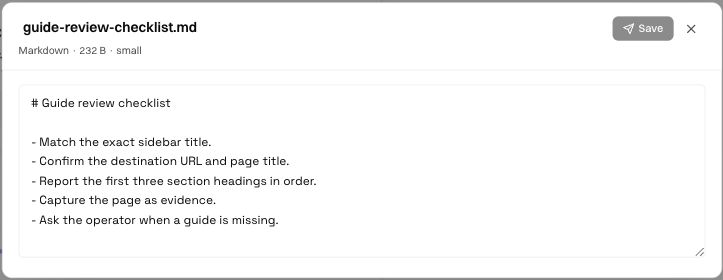
Our note says to match the exact sidebar title, confirm the URL and page title, report three headings in order, capture evidence, and ask when a guide is missing. To make it operational, tell Editor chat which task should consult guide-review-checklist.md and when. Inspect the resulting instructions and test that the run follows the checklist.
Open, edit, upload, or import a document
Select the document name to open its viewer. For an editable text document, change the content and use the viewer's Save control. The filename, format, and size help confirm that you opened the intended item.
Use Upload for a file from your computer, or Import for an available connected source. Installing a connector does not import all its files: select the particular document and check that it appears and opens correctly after ingestion. If a source document changes elsewhere, verify the content the workflow currently has rather than assuming it already contains the new version.
Before replacing a policy or reference file, consider the workflows that depend on its meaning. After the update, open the document to confirm its contents and run a representative example. A correct upload can still change a task's decisions if the underlying policy changed.
Supply files for individual runs
Use the workflow's attachment or file-input path when the file belongs to this request rather than every future run. Give the agent both the file and the job to perform: “Read this invoice, extract the invoice number and total, and ask if either is missing” is more useful than attaching a PDF without context.
A path on your laptop is not automatically accessible to a cloud browser. For a website upload, supply the file through a supported path, identify the target upload control, and check the site's visible confirmation. Selecting a file is only one part of the task; the site may still require an Upload or Submit action.
For programmatic launches, use the workflow-specific schema in API Docs. File-object shapes and upload URLs must match the supported contract. Download a generated file through the run's output/download control when one is available; a filename mentioned in an agent response alone is not proof that the file is retrievable.
Diagnose missing or incorrect data
Was this page helpful?