
Agent runs, sandbox, and fixes
Supply structured inputs, inspect actual step results, respond to approvals, and distinguish node tests from live runs.
Prepare the definition and inputs
Open the Agent automation and review its current graph. The Agents surface requires Publish before live/API/trigger runs; the Run dialog explains this when the definition is still a draft. Publish the reviewed version, then select Run.
The dialog shows the declared input fields and supported input-file area. In Prepare guide review requests, guides is a required JSON array. Enter:
[" SOP document and screenshots ", "", "Builder and demonstrations"]
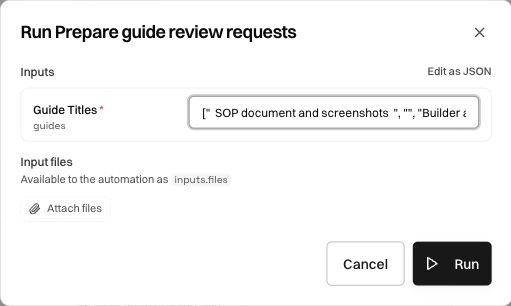
Check the shape before starting. The array above is different from a string containing comma-separated names, and different from an object containing a guides property. Use the shape expected by the selected field or full-object mode.
Follow the run panel
Select Run in the dialog. The run panel reports its state and each executed step. Use Expand run details for the larger view with inputs, per-step timing, outputs, and errors. Runs opens this automation's execution history.
For our example, the input and code steps finish quickly, then the run reports waiting approval. This is the intended checkpoint. A run can correctly wait even though the previous steps succeeded.
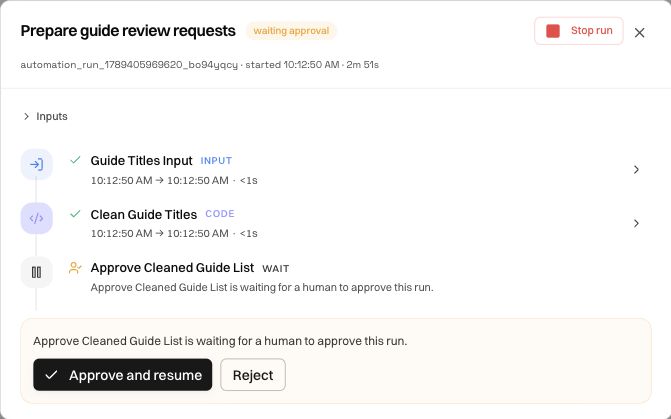
Review values before approving
Expand the code step. Verify that cleaned_guides contains SOP document and screenshots and Builder and demonstrations, in that order, and that count is 2. The leading/trailing spaces and blank entry should be gone.
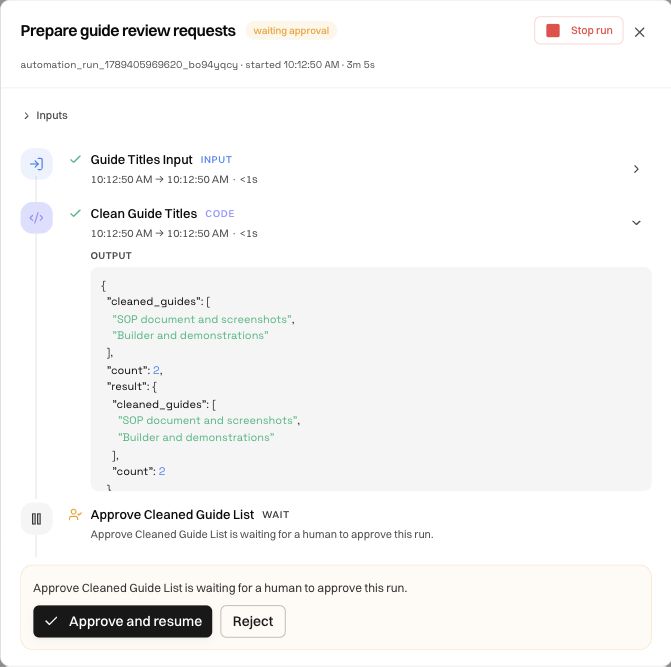
Select Approve and resume when the displayed result satisfies the intended decision. Use Reject when it should not proceed, and inspect the resulting state. An approval is meaningful only if you understand the action or result that comes after it.
In this controlled example, approval allows the final output to be returned. In a larger process, it might allow an external write or delivery, so place and review that boundary deliberately.
Verify completion and final output
After approval, wait for the run to become completed and inspect Final outputs. The expected object is:
{
  "cleaned_guides": [
    "SOP document and screenshots",
    "Builder and demonstrations"
  ],
  "count": 2
}
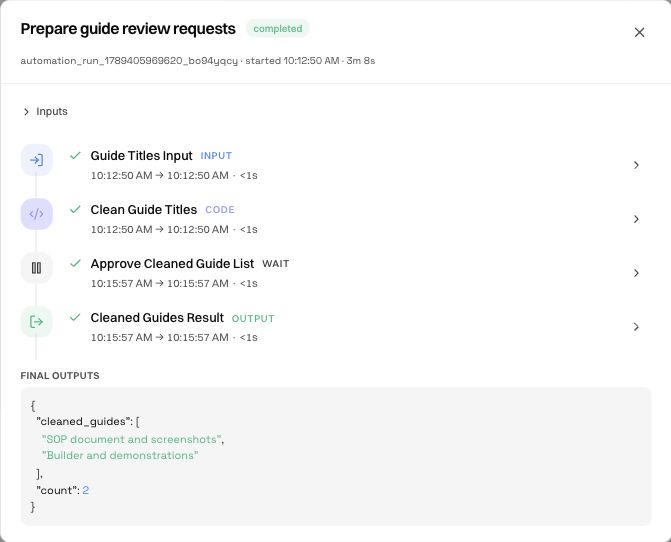
Elapsed run time is not always processing time. A three-minute approval wait should not be interpreted as three minutes of Python execution. Read the individual step durations and waiting state when assessing performance.
Interpret node tests and sandbox labels
The builder may test a node while constructing the graph. Open the test result and compare its values with the expected sample. A successful tool call can still return an unexpected empty list. If that happens, distinguish the node's logic from the input reference or sample context passed to it.
Where a sandbox test disables side effects, its result identifies that behavior. Some code and read requests can still execute for real, while browser calls or write-style operations may be simulated. A passed test verifies only the operations that actually ran.
The LAMBDA sandbox label identifies the code runtime. It does not imply that a published automation's external operations are all simulated. Read the test/run mode and event output before relying on a result to prove a live browser or API path.
Stop or inspect a failed run
Use Stop or Stop run through the product when you need to cancel execution, then confirm the resulting state. Closing a panel or browser tab is not the same operation. Expand the first failed step and compare its input, operation, and error.
For a mapping problem, inspect the upstream output path and expected type. For an external call, inspect connection, authorization, destination, and response. For a browser-workflow call, open that workflow's session evidence as well as the outer Agent record.
Apply a repair deliberately
Some failed deterministic steps can produce Available fixes. Read the original error and proposed permanent change. Apply fix asks the builder to update the definition; dismiss a proposal that does not address the actual failure.
Inspect and test the revised draft, then publish the change before its next live use. A recovery that helped one run does not prove that every input now works. Re-test the failing case and a normal case, and confirm the final output contract remains intact.
Browser-workflow drift and Suggestions and Optimize shortcuts are separate tools. Use the repair surface that corresponds to the layer where the problem occurred.
Was this page helpful?