
Agents and larger automations
Build a process from inputs, code, tools, browser workflows, and human decisions, then verify how data moves between its blocks.
Choose Workflows or Agents
Use Workflows when you want to demonstrate a task in a live browser or computer and compile that procedure. Use Agents when the process combines several kinds of work: API calls, data transformations, model steps, loops, approvals, or calls to existing browser workflows.
For example, a browser workflow can review one documentation guide. An Agent can accept a list of guide requests, clean the list, call the browser workflow for each item, and combine the results. Start with the smallest process that makes the data flow clear.
This walkthrough uses a simpler real dev example, Prepare guide review requests. It accepts a JSON list, trims whitespace, removes blank entries, pauses for approval, and returns the cleaned list and its count. It does not need an external service to demonstrate the orchestration.
Describe the process in the builder
Open Agents, select New automation, and describe the inputs, transformations, decisions, and result. A useful request is:
Create Prepare guide review requests. Accept a required input guides containing a JSON array of guide-title strings. Trim whitespace, remove blank entries, and preserve order in a Python step. Ask the operator to approve the cleaned list, then return the list and its count.
The builder adds nodes to the canvas and explains its changes in chat. Read those explanations as a guide to what to inspect, then verify the actual node configuration. A statement that the graph validates does not prove the sample values flow through it correctly.
The resulting example has five blocks:
Inspect a node and its input mapping
Select a node on the canvas. Its details explain the operation, input references, and available test controls. In the code block, inspect both the Python and the source feeding its input value.
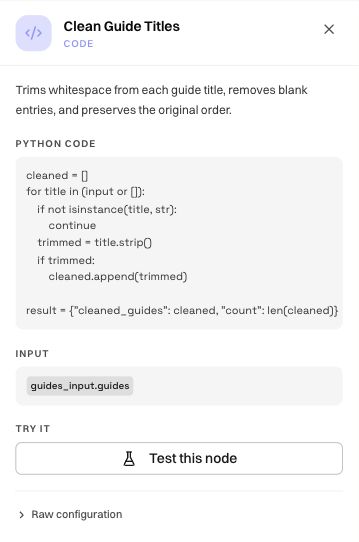
Use Agent building blocks to review other node types. When calling a browser workflow, map its declared input keys and select the intended workflow/version where offered. A similarly named field is not enough if its type or structure differs.
Test the code and the complete path
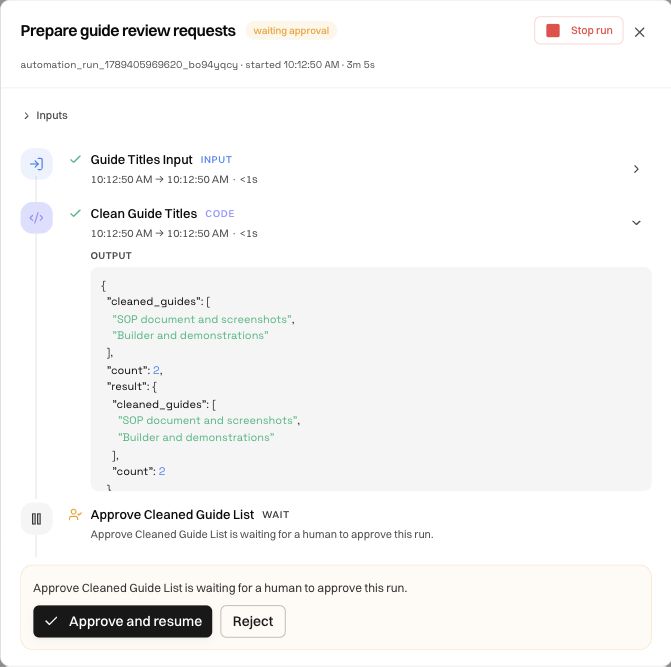
A node test helps isolate its operation. A full run checks the connections between nodes, the approval, and the final output. Both are useful: passing a Python test with a manually supplied list does not verify that the input node passes the same list during execution.
For this example, use:
{
  "guides": [
    "  SOP document and screenshots  ",
    "",
    "Builder and demonstrations"
  ]
}
Expect two cleaned titles in the same order. The empty entry should disappear and the extra spaces should be removed. Agent runs shows the full execution and approval flow with the actual result.
Publish when the Agent definition is ready
The Agents surface has a Publish control. A draft's Run dialog explains that publication enables runs, the API trigger, and schedule/email triggers. Review the draft, publish the intended definition, and publish subsequent changes when ready for use.
This differs from the browser/computer workflow workbench, where saving a valid graph is sufficient. Do not carry the workflow's save-only lifecycle into the separate Agents builder, or assume an Agent draft is runnable merely because its canvas is visible.
Publish the intended Agent definition in your workspace, then run the example inputs and inspect each result before connecting external actions.
Add external work after the data flow is correct
Once the list-cleaning path works, a larger version could loop over the approved guide titles, call a saved browser workflow for each, and collect its results. Specify empty-list behavior, per-item failures, and the final combined format before adding that loop.
For APIs and connected tools, inspect the destination, method, authorization, input shape, and output mapping. Use the workspace's Integrations for supported connections. A node in the graph does not provision an account, credential, network route, or missing provider.
Read the builder model and sandbox labels in context. LAMBDA sandbox identifies a code execution environment; it does not mean every action in a later live automation is simulated. The runs and sandbox guide explains how to interpret individual test results and live execution.
Was this page helpful?