
Browser SDK and embedded viewer
Put a live workflow browser in your dashboard, give an operator limited control, and hand the task back to the agent.
Use a live execution of a saved workflow. Browser access attaches to the cloud browser allocated to a saved workflow run while it is running or waiting. It does not attach to a new-workflow authoring session or replay a completed run. Send API requests to api.ramain.ai/api/v1 and keep your API key, workflow, run, and grant in the intended workspace.
Use the embedded viewer when an operator should watch or correct a running workflow inside your own application. Use the SDK when your application needs a small set of explicit browser operations. Both connect to the workflow's existing browser through a short-lived access grant.
Follow the operator handoff
An operator can correct a running workflow without leaving your application. The handoff has five distinct steps:
For example, change a text field to Corrected by the embedded operator, then ask the agent to read the field and report its value. Check that the actual result contains that text. This verifies that the agent continued with the changed page, rather than merely accepting a resume request.
Understand the three parts
The gateway uses CDP internally, but it does not expose a public raw CDP connection. Client code cannot evaluate arbitrary JavaScript, read cookies, access a filesystem, create another browser/context, or dispatch arbitrary protocol commands. Editing the SDK does not expand the grant's server-enforced permissions.
1. Start a run and wait for its browser
Launch an enabled workflow and retain its run_id. Poll GET /api/v1/runs/{runId} until session_id is populated. The browser gateway currently supports live cloud browser execution sessions; it does not provide a Windows desktop stream.
A queued run can exist before its browser does. If grant creation returns 409 BROWSER_NOT_READY, continue polling that run rather than launching another one. A completed, failed, or stopped run cannot receive a new live-browser grant. Use the execution run ID from the saved workflow launch; an authoring session ID cannot be substituted for it.
The portal's live_view_url and the gateway's embed_url serve different audiences. A portal link requires workspace sign-in. An embedded viewer uses the grant and does not require a RamAIn portal cookie.
2. Issue a grant from your backend
The issuing API key needs runs:read. Adding any control tool also requires workflows:run. Start with only the tools the operator needs.
# Run this on your backend. Set RAMAIN_API_KEY securely.
export RAMAIN_API_BASE='https://api.ramain.ai/api/v1'
export RAMAIN_RUN_ID='RUN_ID_FROM_LAUNCH'

curl --fail-with-body --request POST \
  "$RAMAIN_API_BASE/runs/$RAMAIN_RUN_ID/browser-access" \
  --header "Authorization: Bearer $RAMAIN_API_KEY" \
  --header 'Content-Type: application/json' \
  --data '{
    "allowed_tools": ["status", "stream", "click", "type", "press_key", "scroll", "interrupt", "resume", "human_input"],
    "allowed_origins": ["https://dashboard.example.com"],
    "expires_in": 900
  }'
The response is 201 Created. Keep the returned fields together as the grant:
If you omit allowed_tools, the grant permits status and stream only. Read-only viewing does not need click, type, interrupt, or resume. expires_in is an integer number of seconds from 60 through 3600, inclusive; omitting it gives 900 seconds. A value outside those bounds returns 400 INVALID_EXPIRY.
Your backend must authorize the signed-in operator's access to the requested run before returning a grant. Keep the workspace key on that backend; return only the short-lived grant to the intended dashboard session.
3. Match the dashboard origin exactly
An origin consists of the scheme, hostname, and port when present. Supply exact HTTPS origins, with no path, trailing slash, or wildcard.
The iframe's frame-ancestors policy allows the granted dashboard origins. Cross-origin SDK requests must also come from a granted origin. An empty allowed_origins list supports server-side SDK use and direct opening of the viewer link, but blocks iframe embedding.
If an embedded viewer is refused, compare the actual parent page's origin with the issued list. Creating the same grant again with the same incorrect origin will not fix the mismatch.
4. Add the live browser iframe
In your dashboard, use the grant returned by your authenticated backend:
// grant is the response your backend authorized for this operator.
const iframe = document.createElement('iframe');
iframe.src = grant.embed_url;
iframe.title = 'RamAIn live workflow browser';
iframe.style.cssText = 'width:100%;height:640px;border:0';
document.querySelector('#live-browser').append(iframe);
Your page must contain the target element, such as <div id="live-browser"></div>. Keep the embed_url fragment intact: it carries the grant token. Do not replace it with a workspace key or a provider viewer URL.
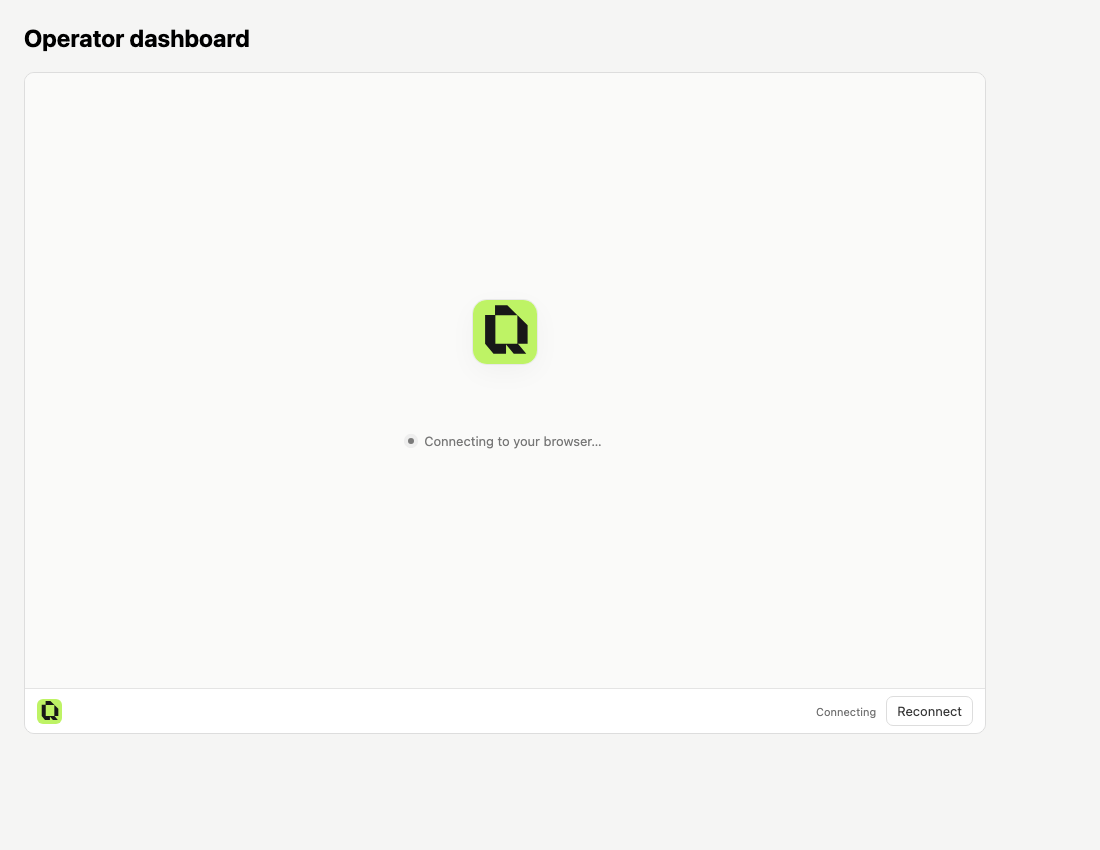
The viewer shows a screencast of the current browser page. It is not a recording player, an audio stream, browser chrome, or a Windows desktop. Frames are sent when the page changes, with a ceiling of 15 frames per second and bounded buffering. This is not a fixed cadence: a static page can produce no new frames. Use stream status messages or ping/pong to check connection health; silence from the image feed alone does not mean the connection failed.
The existing RamAIn loading animation and permanent bottom-left logo are required parts of the viewer. The viewer always includes these elements. Available Interrupt, Resume, and human-response controls depend on the grant's tools and the run's current state.
The token is carried in the URL fragment, which is not sent as part of the server request or referrer. The viewer removes it from the visible URL and retains it in same-origin session storage for reloads where storage is available. The complete grant and link still provide access and should go only to the intended operator.
5. Use the SDK for an acknowledged interruption
Import RamainBrowser from the returned sdk_url. Your code executes in your application and calls documented methods; it does not upload executable JavaScript to the workflow.
For an on-demand correction, request Interrupt, then wait for intervention.state to become paused. A successful interrupt request is not yet the executor's acknowledgement. The following example stops waiting after 30 seconds rather than issuing a click into an unpaused run:
const { RamainBrowser } = await import(grant.sdk_url);
const browser = new RamainBrowser(grant);
const delay = ms => new Promise(resolve => setTimeout(resolve, ms));

await browser.interrupt();
let paused = false;
for (let attempt = 0; attempt < 30; attempt += 1) {
  const state = await browser.status();
  if (state.status === 'waiting_for_human_live') {
    throw new Error('Read and answer the current human checkpoint instead.');
  }
  if (state.intervention?.state === 'paused') {
    paused = true;
    break;
  }
  await delay(1000);
}
if (!paused) throw new Error('Pause was not acknowledged; no correction was made.');

// Example selectors: replace with the actual fields in your target page.
await browser.type('Updated value', '#customer-name');
await browser.click({ selector: '#save' });
// Inspect the resulting page before telling the agent to continue.
await browser.resume('Updated the customer name; continue from the saved record.');
This example requires status, interrupt, type, click, and resume in allowed_tools. A stream permission supplies the iframe view. If you also call screenshot(), explicitly include screenshot in the grant.
After Resume, inspect status until the agent acknowledges the handoff and continues. If the correction's effect is uncertain, inspect the visible page before resuming or repeating it. A command timing out does not establish that its side effect did not happen.
6. Answer a planned human checkpoint
A planned or agent-requested checkpoint uses waiting_for_human_live and human_action. Read the instructions, review the page, and answer the current checkpoint. This is a separate path from resuming an interruption you requested yourself.
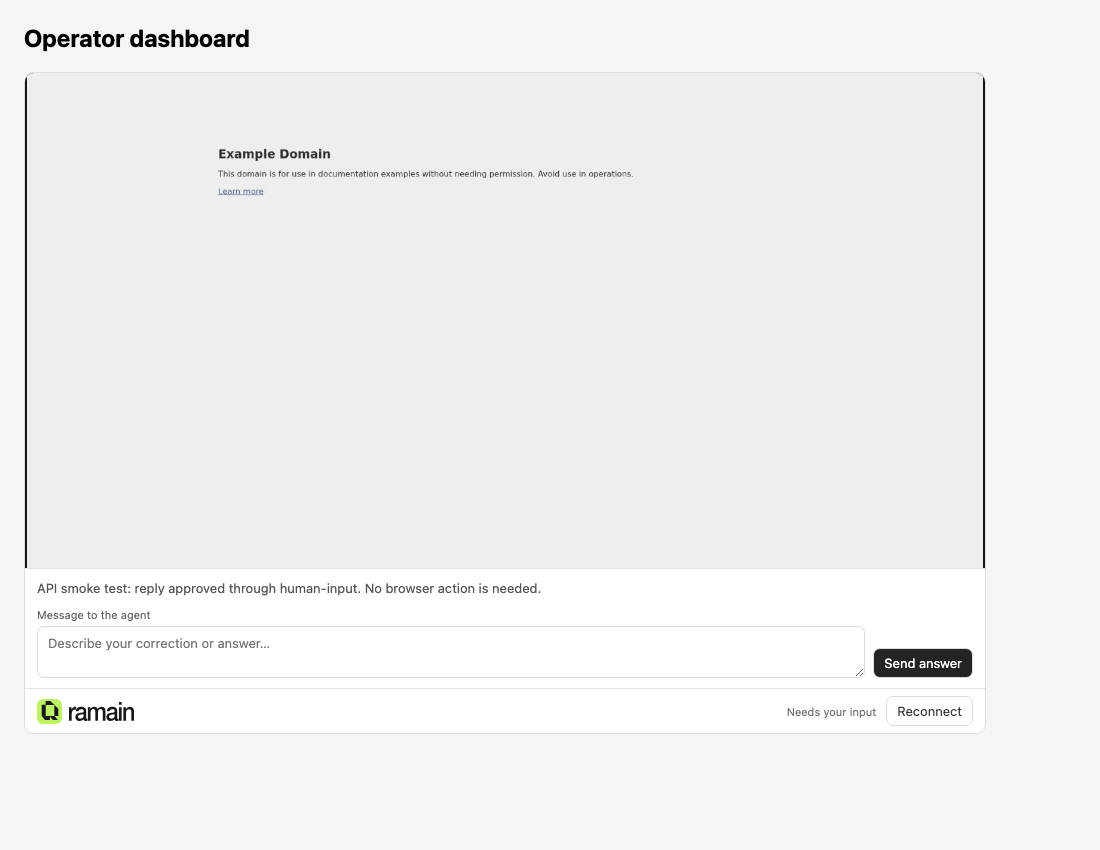
human_input is granted.const state = await browser.status();
const checkpoint = state.human_action;
if (state.status !== 'waiting_for_human_live' || !checkpoint) {
throw new Error('There is no current human checkpoint to answer.');
}
if (!checkpoint.response_accepted) {
// Use the operator's actual answer after they review the instructions.
await browser.humanInput(checkpoint.checkpoint_id, operatorResponse);
}
Calling interrupt while a live human checkpoint is active returns 409 HUMAN_WAIT_CONFLICT. Read and answer that checkpoint with humanInput; do not wait for an interruption acknowledgement that cannot occur.
Continue polling after submission. response_accepted means the answer was recorded; the runtime may still need to acknowledge it. Do not submit a changed answer merely to force progress. Use humanInput for a checkpoint response and resume(guidance) for an acknowledged on-demand interruption.
Browser mutations are allowed only while an interruption is acknowledged as paused or while there is an unanswered live human checkpoint. Once an answer is accepted, do not assume the browser remains under operator control.
Permitted methods and arguments
Supported keys are Enter, Tab, Shift+Tab, Escape, Backspace, Delete, ArrowUp, ArrowDown, ArrowLeft, ArrowRight, Home, End, PageUp, PageDown, Space, and ControlOrMeta+A.
Equivalent HTTP calls POST to the returned control_url with Authorization: Bearer <grant.token> and Content-Type: application/json. For example, this body scrolls down 600 pixels:
{
  "tool": "scroll",
  "arguments": { "delta_y": 600, "delta_x": 0 }
}
Use delta_y and delta_x in HTTP requests; the SDK's positional arguments are scroll(deltaY, deltaX?). direction and amount are not accepted. HTTP responses wrap the result in result; SDK methods return that result directly. Unknown tools, unexpected fields, and invalid arguments are rejected. A successful command acknowledgement does not prove the intended field or page changed: inspect a frame, screenshot, or resulting page state before continuing.
Connect directly to the live stream
The live browser iframe handles this protocol for you. If you build a stream client, connect to the returned stream_url over wss:// and request stream in the grant's allowed_tools. The dashboard origin must be allowed by that grant.
Authenticate within five seconds
As soon as the WebSocket opens, send this JSON text message using the short-lived grant token:
{ "type": "authenticate", "token": "BROWSER_GRANT_TOKEN" }
It must be the first message and arrive within 5 seconds of connection. A token in the query string, a WebSocket subprotocol, or a message with type: "auth" does not authenticate the stream. Keep the workspace API key on your backend.
Wait for ready before treating the connection as usable. After authentication, the client may send {"type":"ping"} and receives {"type":"pong"}. These are JSON application messages. Browser commands go to control_url or the SDK; sending them over the stream is rejected.
Handle text messages and binary frames separately
The JPEG may be scaled relative to the CSS viewport. Do not assume fixed image dimensions or use displayed-image coordinates directly for click({ x, y }). Prefer a CSS selector when possible.
Frames are change-driven, with a maximum of 15 per second. A static page can remain silent for many seconds, even while status messages and ping/pong continue. Retain the last frame until a newer one arrives; use status and connection events to distinguish an unchanged page from a disconnected viewer.
This transport example delivers JPEG blobs and JSON updates to callbacks supplied by your dashboard. It does not issue browser commands or automatically reconnect:
function connectBrowserStream(grant, { onFrame, onState, onError }) {
  const socket = new WebSocket(grant.stream_url);
  socket.binaryType = 'arraybuffer';
  let pingTimer;

  socket.addEventListener('open', () => {
    socket.send(JSON.stringify({ type: 'authenticate', token: grant.token }));
  });
  socket.addEventListener('message', event => {
    if (typeof event.data !== 'string') {
      onFrame(new Blob([event.data], { type: 'image/jpeg' }));
      return;
    }
    const message = JSON.parse(event.data);
    if (message.type === 'error') {
      onError(message);
      return;
    }
    if (message.type === 'ready') {
      pingTimer = setInterval(() => {
        if (socket.readyState === WebSocket.OPEN) {
          socket.send(JSON.stringify({ type: 'ping' }));
        }
      }, 15000);
    }
    onState(message);
  });
  socket.addEventListener('error', () => {
    onError({ code: 'CONNECTION_ERROR', message: 'The stream connection failed.' });
  });
  socket.addEventListener('close', event => {
    clearInterval(pingTimer);
    onState({ type: 'closed', code: event.code, reason: event.reason });
  });
  return () => {
    clearInterval(pingTimer);
    socket.close();
  };
}
Your onFrame callback can render each blob into an image or canvas; release any object URLs you create when replacing a frame. Your onState callback should distinguish live, waiting, and disconnected states so a retained frame is not mistaken for a live connection.
Handle stream closure
The gateway uses close code 4001 for authentication failures, authentication timeouts, and streams it terminates because access ended or a protocol/stream error occurred. An error JSON message may arrive before closure, but the authentication timeout can close without one. Inspect the JSON error code when present; 4001 alone does not distinguish expiry from revocation or a finished run.
For a temporary connection failure, reconnect with bounded backoff and authenticate again on the new socket while the grant remains valid. Reconnecting does not renew a token. Obtain a fresh authorized grant only when the run remains eligible; stop retrying when the run has ended or access was revoked.
Revoke, renew, or reconnect
Revoke a grant from your backend using the workspace API key:
export RAMAIN_ACCESS_ID='ACCESS_ID_FROM_GRANT'

curl --fail-with-body --request DELETE \
  "$RAMAIN_API_BASE/runs/$RAMAIN_RUN_ID/browser-access/$RAMAIN_ACCESS_ID" \
  --header "Authorization: Bearer $RAMAIN_API_KEY"
A successful revocation returns 204 No Content. Repeating the deletion of the same known grant also returns 204; an unknown grant returns 404. Reusing a revoked grant returns 401 ACCESS_REVOKED, while a grant that reaches its expiry time returns 401 ACCESS_EXPIRED. New commands fail immediately; live streams revalidate every second and close when access ends. A command already executing may finish.
Expiry, revocation of the issuing API key, run completion, or browser-session replacement also ends access. A grant for an earlier session cannot be reused for its replacement. If the run is still eligible, issue a fresh grant through your backend; do not extend an exposed token in place.
Transient stream failures use bounded reconnect backoff, and the viewer offers Reconnect. Reconnecting does not renew an expired grant or resume the agent. Closing the viewer disconnects access but leaves the workflow's browser lifecycle under the workflow service.
Limits and errors
Verify the integration before relying on it
Check one view-only grant, one permitted correction after an acknowledged pause, one human-checkpoint response, and one revocation. Confirm that an unapproved origin and a disallowed tool fail. Then check how your dashboard behaves when the run ends, the grant expires, or the stream reconnects.
Run these checks with your own dashboard origin, permissions, and representative workflow. Test both the successful handoff and the expected error states before depending on the integration.
Was this page helpful?