
Browser and computer
Choose the environment that can reach the application and understand what remains separate from your laptop.
A workflow needs an execution environment in which to do its work. The standard path uses a cloud browser. Computer workflows use a configured Windows desktop. Choose based on the application and its connectivity requirements before demonstrating the task.
Understand the two browsers
Your local browser displays RamAIn's workbench. Inside the workbench, the live view shows a separate cloud browser controlled by the workflow agent. Signing into a website in a local tab does not automatically sign the cloud browser into it.
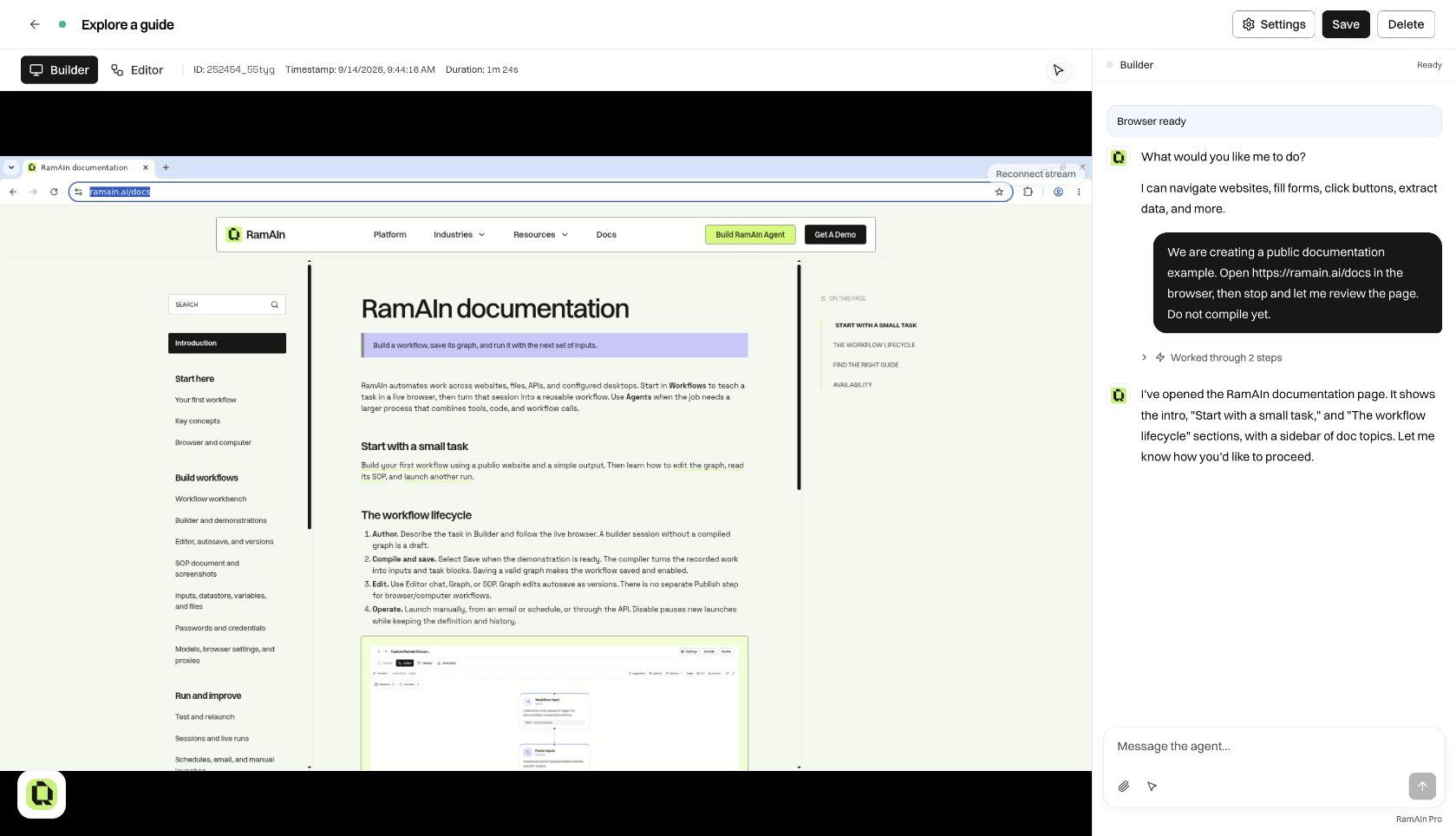
Use New Workflow for websites, vendor portals, and browser-based business applications. Supply login references through Passwords, and provide documents through supported file and input controls. A path such as a file on your laptop is not automatically a file on the remote runtime.
Before building a long task, confirm that the cloud browser can open the starting page, authenticate with the intended account, and reach the records the workflow needs. A successful local-browser visit does not establish those conditions for the agent.
Keep the right browser state between runs
Workflow settings control the available profile persistence, stealth, and proxy options. Use saved-login persistence when the workflow should retain relevant browser state across sessions. Test with the expected signed-in or signed-out state; a task that works only because of your demonstration's session may need a login path.
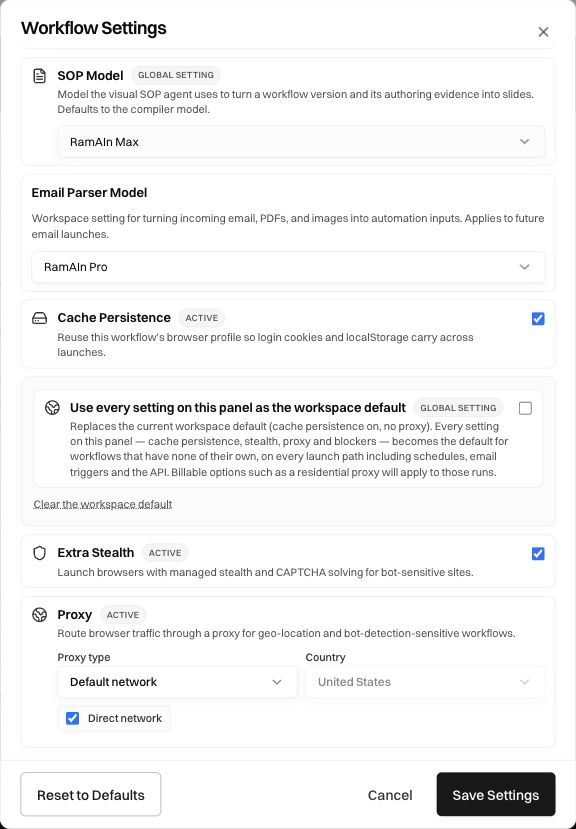
A concurrent-session warning means more than one browser may be saving the same workflow's login state. Read the warning and coordinate those runs if retaining the final profile matters. It does not necessarily mean that the current execution's inputs or output were lost.
Know when a computer workflow is appropriate
Use a computer workflow when the task needs a native desktop application or a configured regional desktop environment. The current New Desktop Agent creation control is restricted to dev-admin and depends on configured desktop infrastructure and a region.
Computer workflows use the same semantic graph and compile/save/edit/run lifecycle as browser workflows. The environment and desktop assignment are part of the workflow configuration. Mentioning a desktop application in a browser task does not convert its runtime into a Windows desktop.
Choose an available desktop region and confirm that its configured host can open the required application. Your administrator manages desktop provisioning and access; a privileged role alone does not create a desktop host.
Check connectivity before choosing a proxy
A browser proxy changes cloud-browser traffic. It does not install a desktop application or establish arbitrary private-network connectivity. If the target is unavailable, diagnose the URL, credentials, network requirement, and region before adding more navigation instructions.
Test the environment with a small task
Ask the agent to open the intended start page, verify its title, and stop. Confirm the correct account and record context before expanding the task. Then demonstrate one representative case and compile it.
For a safe public example, follow Your first workflow. For infrastructure questions beyond the available product controls, use Deployment options.
Was this page helpful?